Add Data
Add New Variable
1. Step 1: click "+" on the top right.

2. Step 2: click "Data".
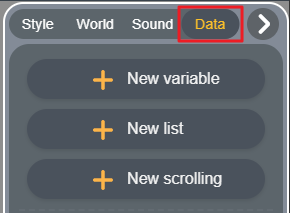
3. Step 3: click "New variable".
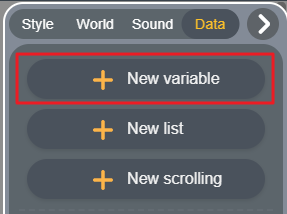
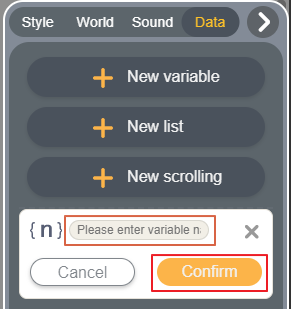
4. Step 4: enter the variable name and click confirm.
5. Step 5: now you can find the new variable in "[variable]" block from Data.
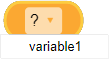
- Demonstration:

Add New List
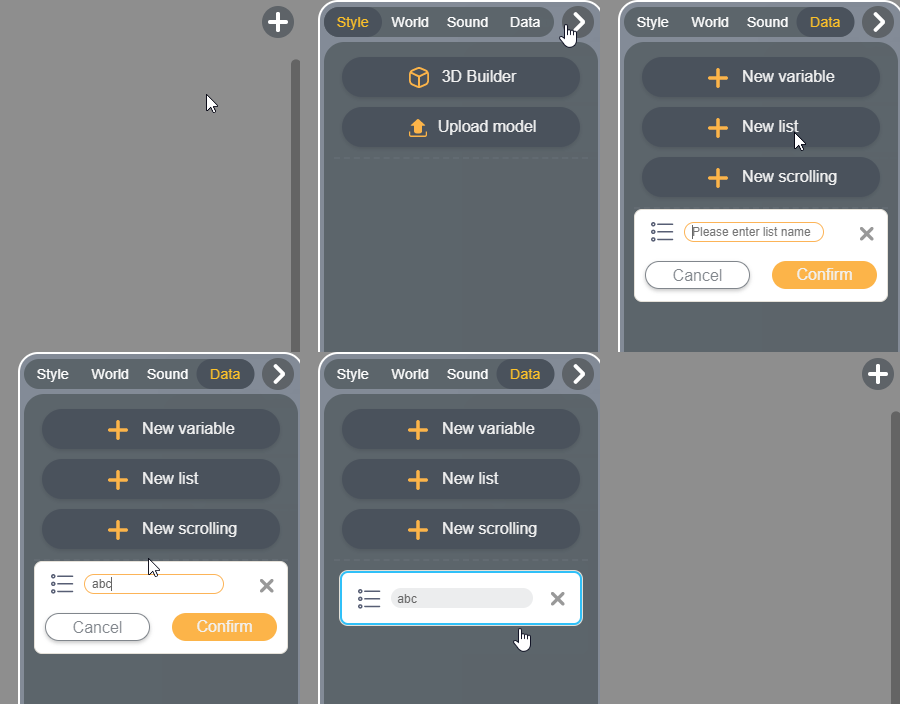
Please refer to [Add New Variable] and select [New list] at step 3.
- Demonstration:
Add New Scrolling
1. Step 1: click the "+" on the top right.
2. Step 2: click [Data].
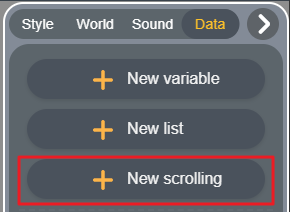
3. Step 3: click "New scrolling".
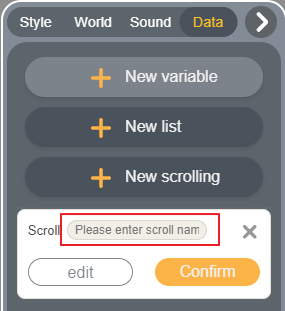
4. Step 4: enter the scrolling name (please note that you should enter the scrolling name, not the contents!).
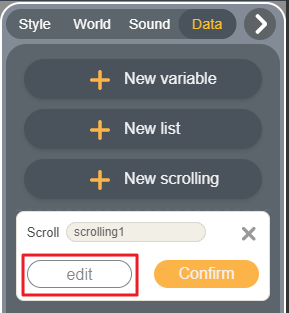
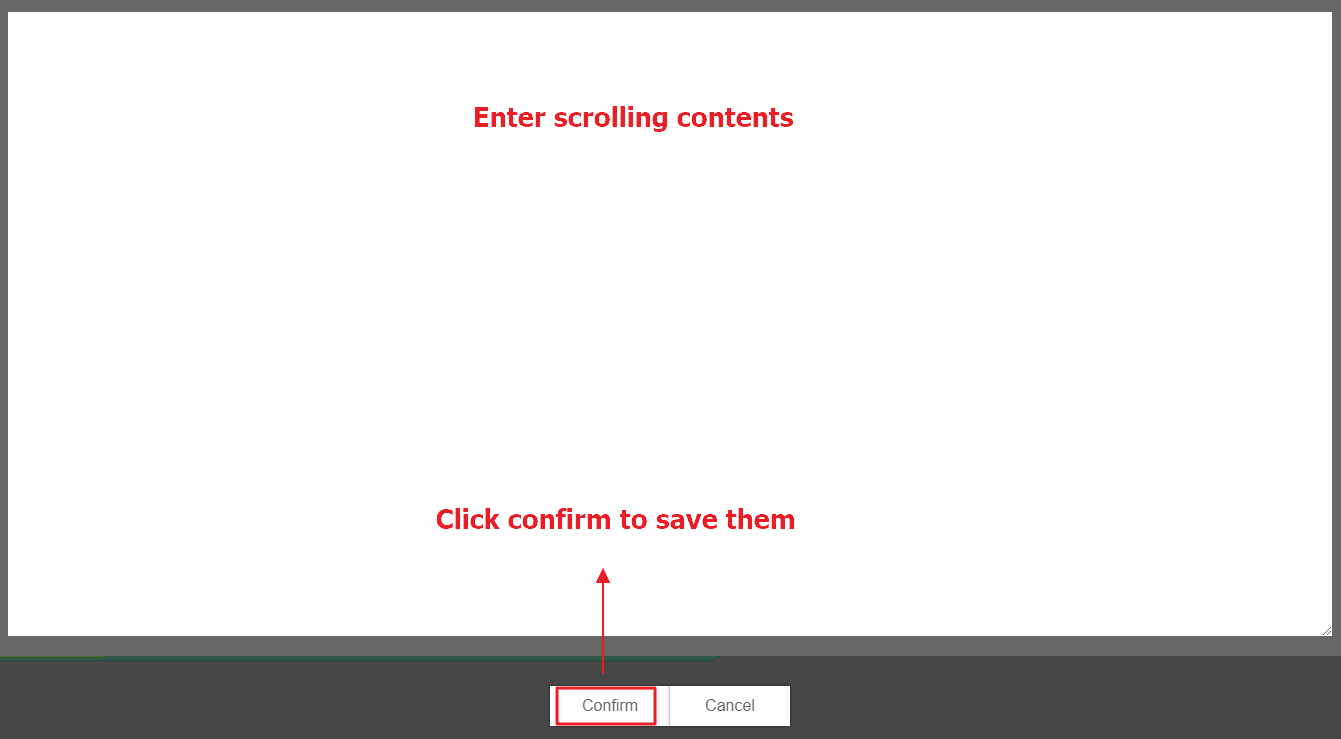
5. Step 5: click edit to enter scrolling contents.
6. Step 6: after entering the contents, click confirm to save the contents.
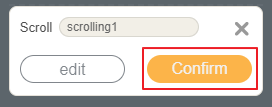
7. Step 7: click confirm to save the scrolling.
8. Step 8: You can use "show scrolling [ ] font size [ ]" block to show scrolling text in the game.
