Game Operation Guide
Click yellow start button on bottom right, and you can enter the game.

Game Interface
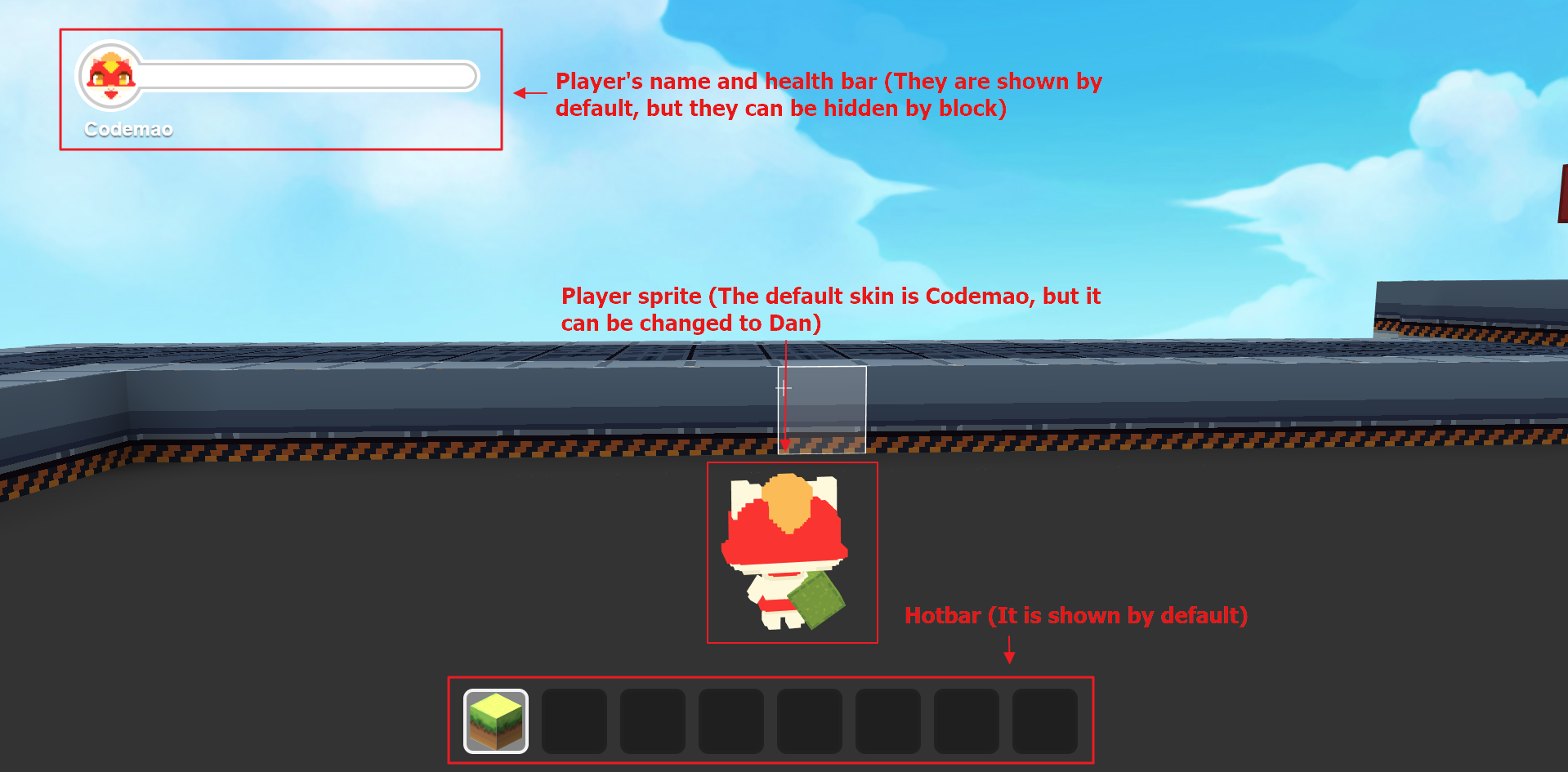
After entered the game, player can control the sprite to move in Box Island. If preset blocks are not changed, player name and his/her health bar are on top left, and hotbar is at the bottom.
Operation Guide
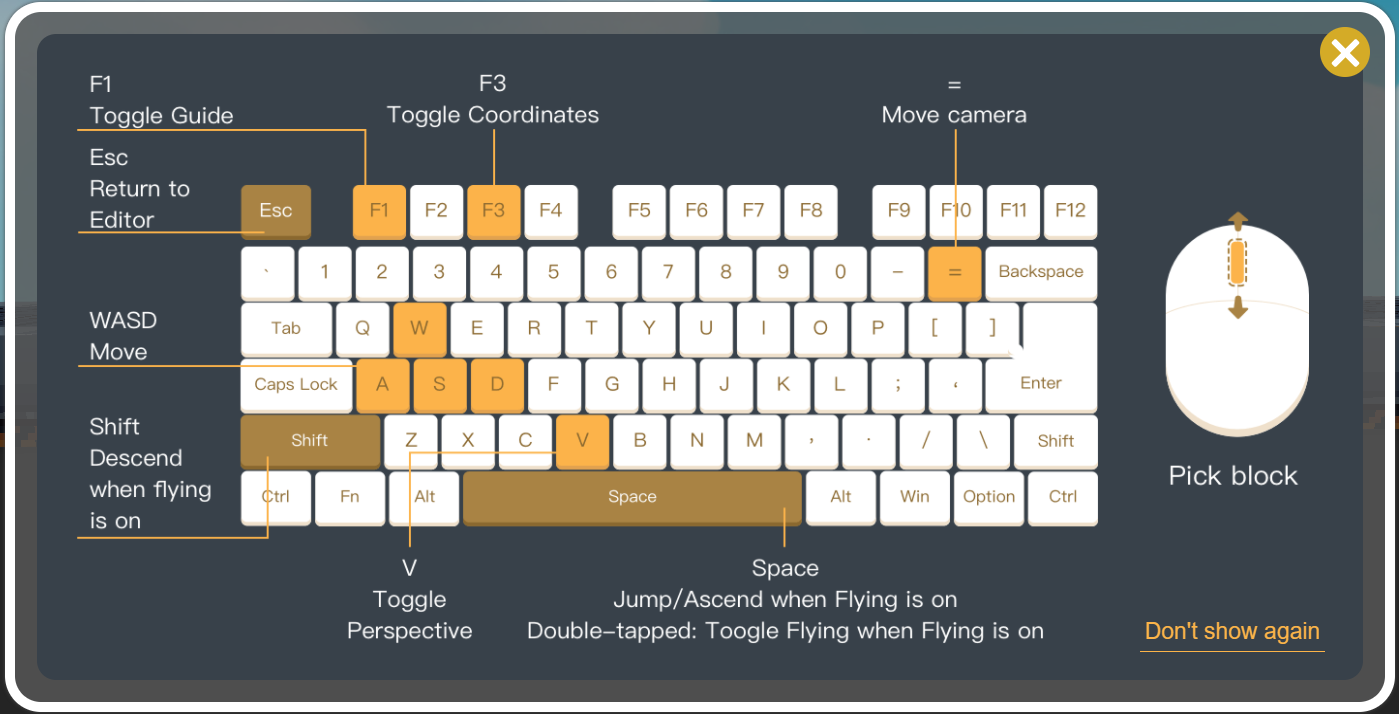
Press F1 on keyboard in game (Ctrl+F1 or Ctrl+Fn+F1 for some computers) to show operation guide. Click "×" button on top right to close it.
Sprite Control
Pressing key W/A/S/D, space bar or Shift key can control sprite to move, jump or fly.
| Key | Effect |
|---|---|
| W(or ↑) | Sprite moves forward |
| A(or ←) | Sprite moves left |
| S(or ↓) | Sprite moves backward |
| D(or →) | Sprite moves right |
| Single-press space bar | Sprite jumps / Sprite flies (in flying mode) |
| Double-press space bar | Sprite double jumps / Sprite starts or stops flying (in flying mode) |
| Shift | Sprite descends (in flying mode) |
Enable Flying
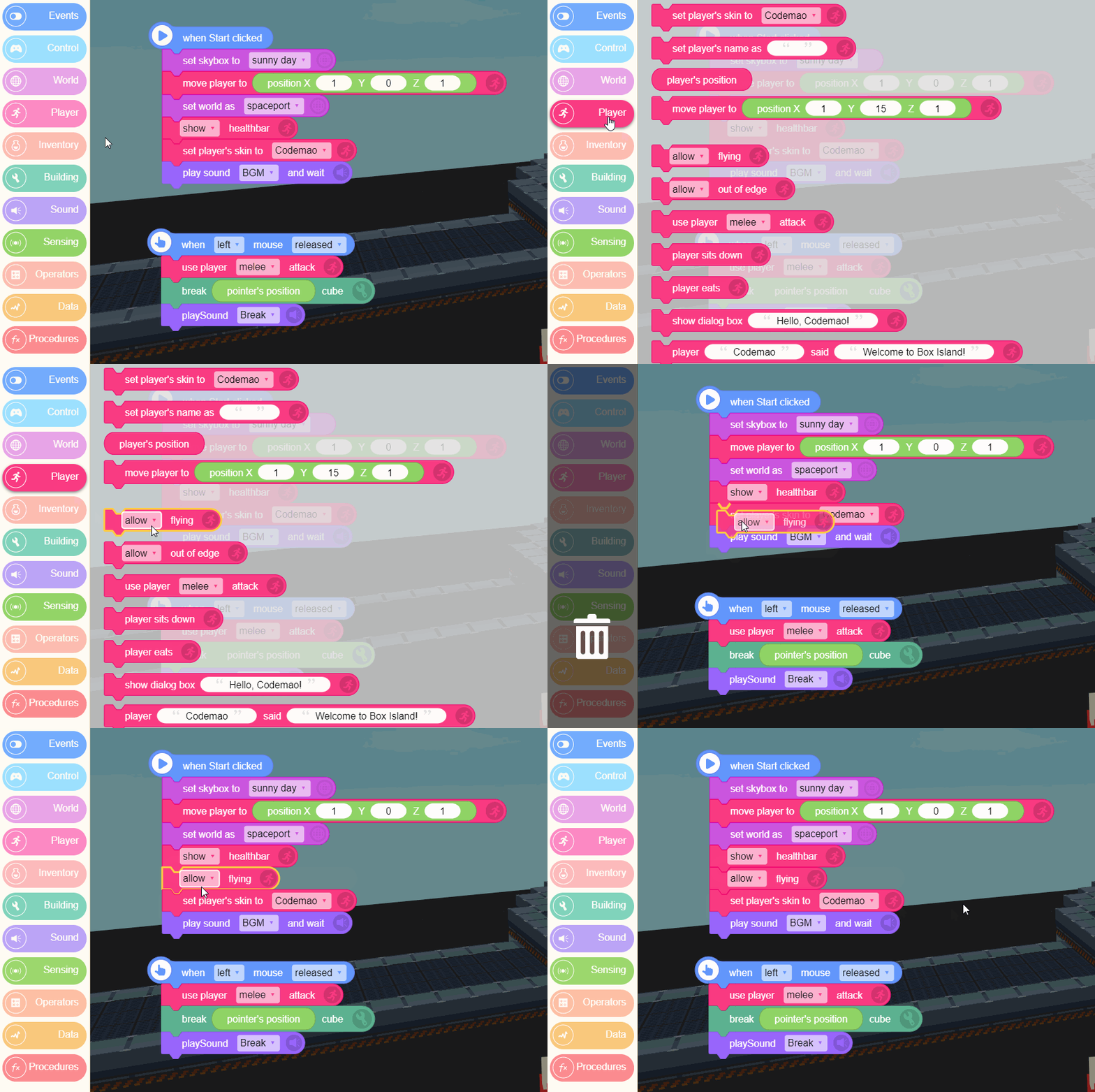
If you want to enable flying, press key Q to return to BOX.GAME Editor. Add the "allow flying" block and click start button to enter game interface again. Then you can single-press space bar to start flying and double-press space bar to stop.
Open/Close Backpack
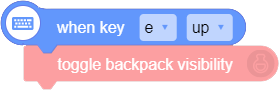
A backpack is preset to store all cubes in BOX.GAME. If default blocks are not changed, you can press key E to open or close backpack. Choose a cube in backpack, and it would be added to the selected position in hotbar.

Choose Cube in Hotbar
You can select position in hotbar by pressing key 1 to 8, which would be in white frame.


Put and Break Cube
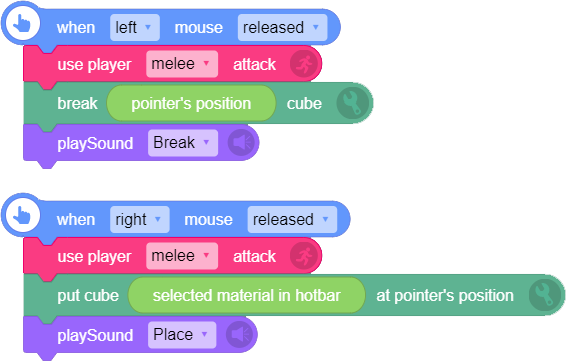
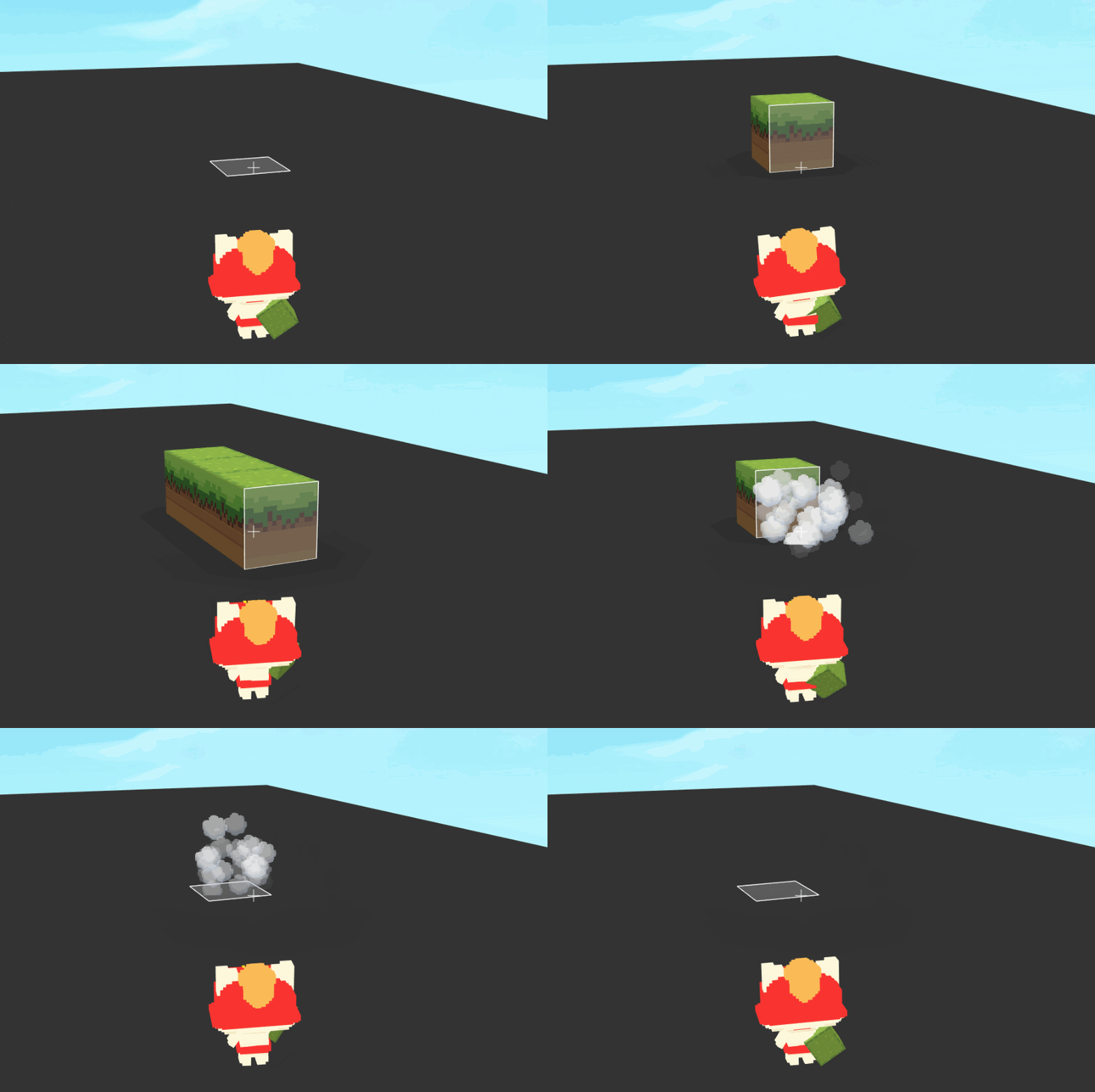
If preset blocks below are not changed, you can left-click to break cube and right-click to put cube in Box Island.
Show/Hide Coordinates
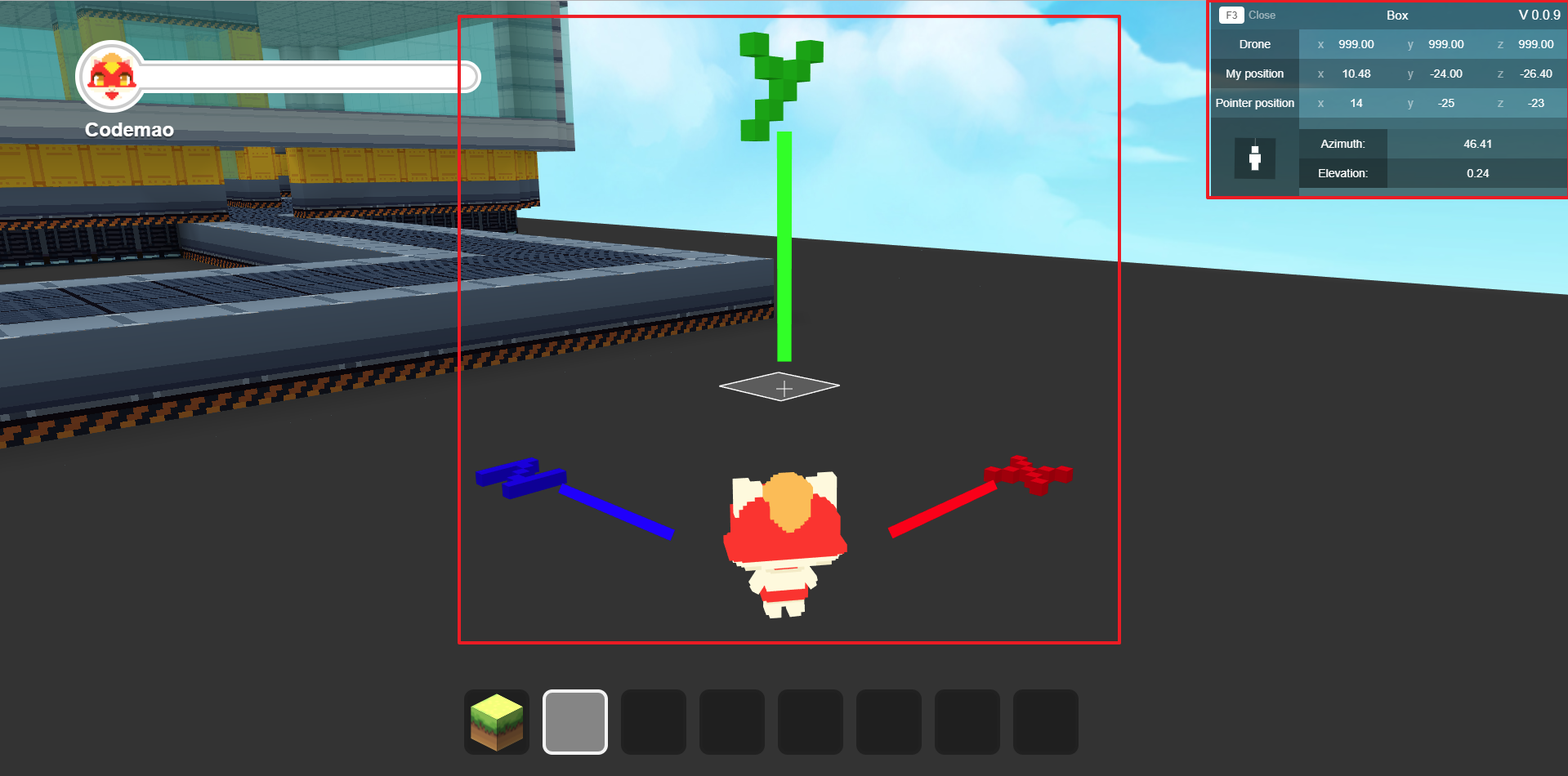
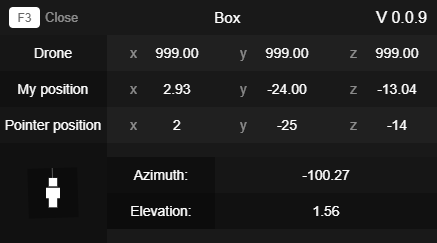
Press F3. X-axis, Y-axis and Z-axis will be shown on player's position, and coordinates information (drone's position, player's position, pointer's position, camera azimuth and elevation) will be shown on top right. Press F3 again (Ctrl+F3, Ctrl+Fn+F3 or Tab for some computers) to hide coordinates.
Switch Perspective
Press key V to switch perspective: first-person perspective or third-person perspective.
First-person perspective: You can see surrounding environment from the sprite's perspective, so you cannot see the sprite itself in game.
Third-person perspective: You can see the sprite and surrounding environment from player's perspective.
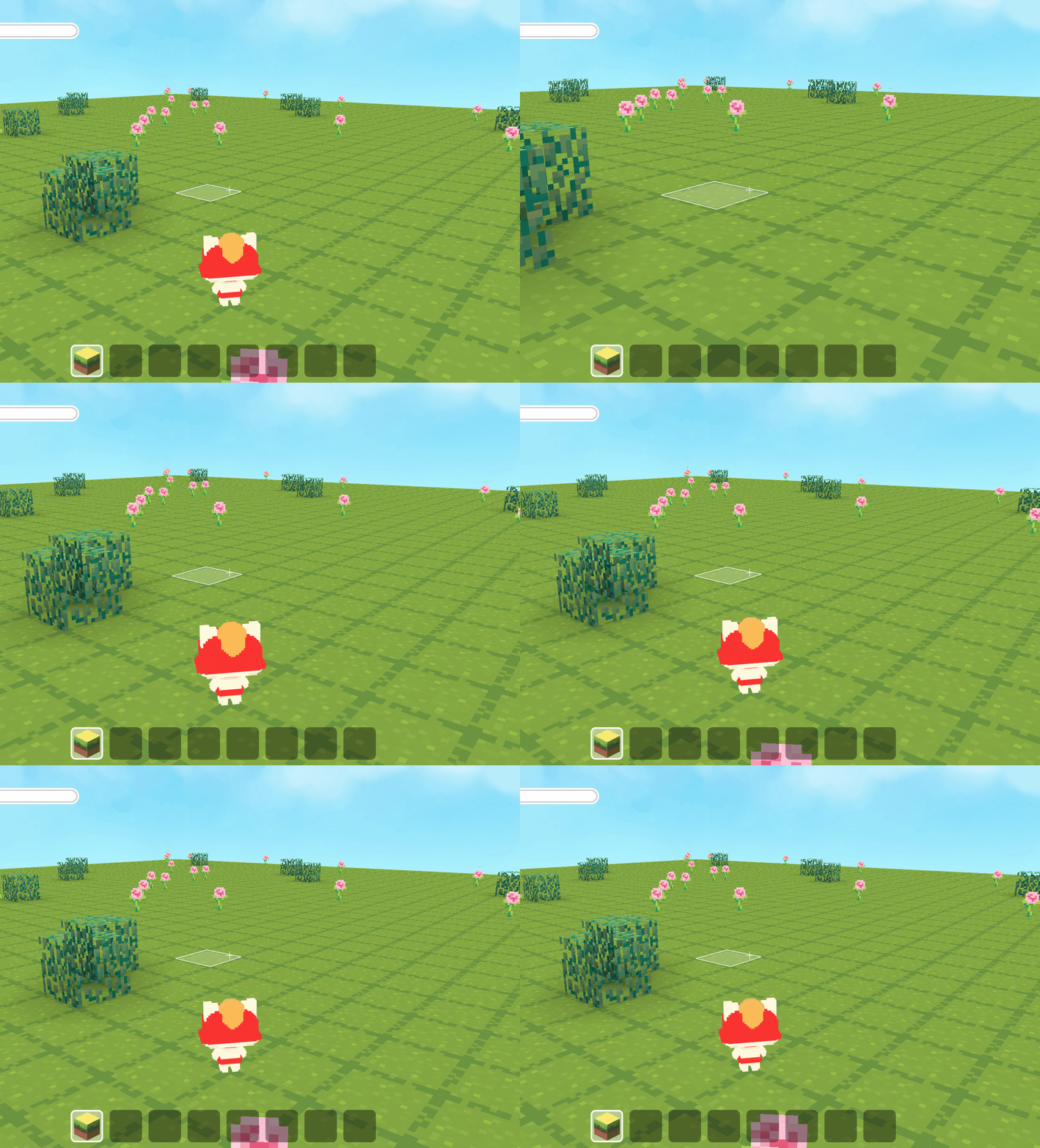
Control the Camera
Press the "=" key to control the camera, and you can observe other sides of the sprite.
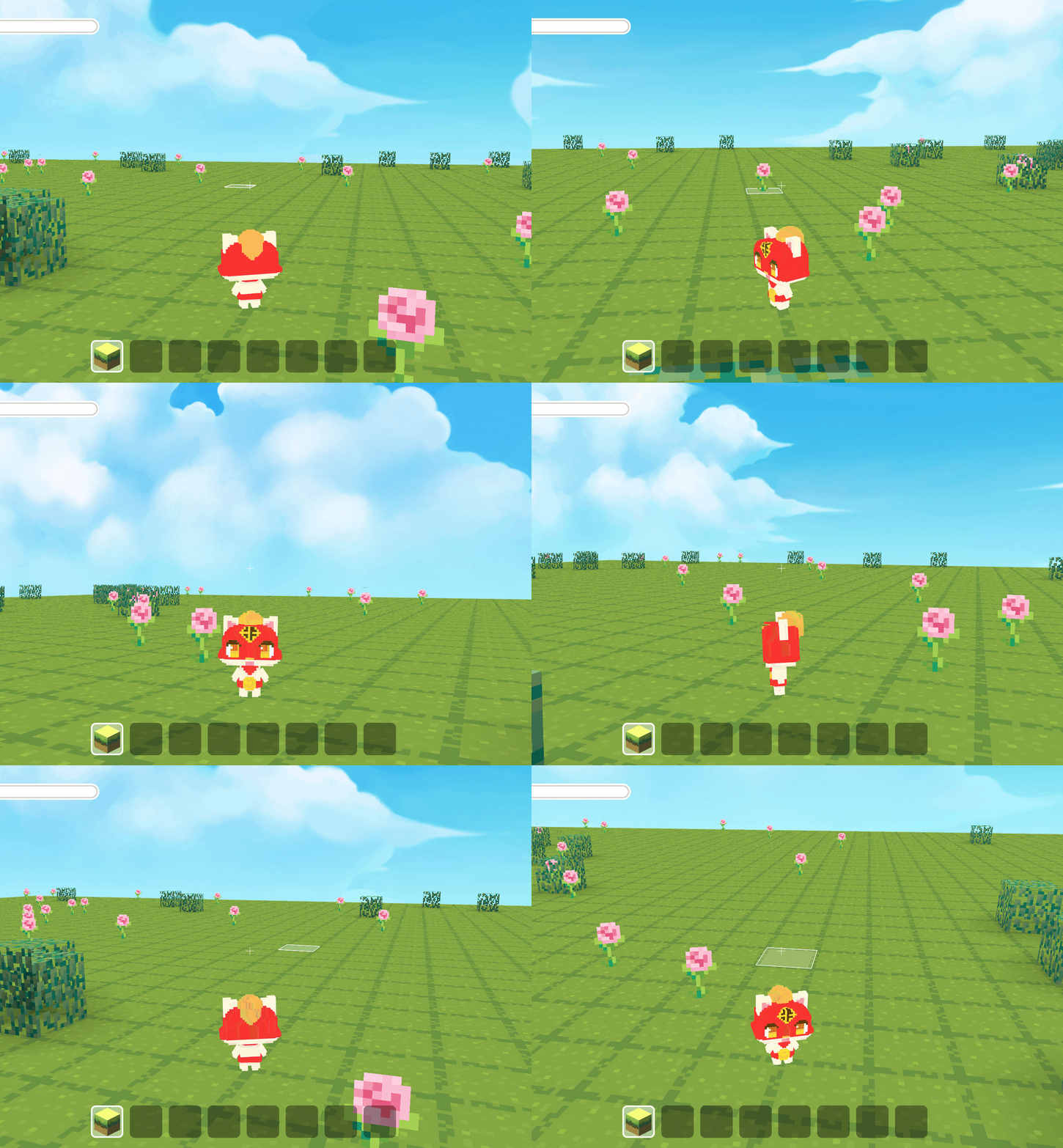
Return to BOX.GAME Editor
Single-press Esc key to show mouse pointer. Double-press Esc key or press key Q to quit the game and return to BOX.GAMR Editor.