Interface Introduction
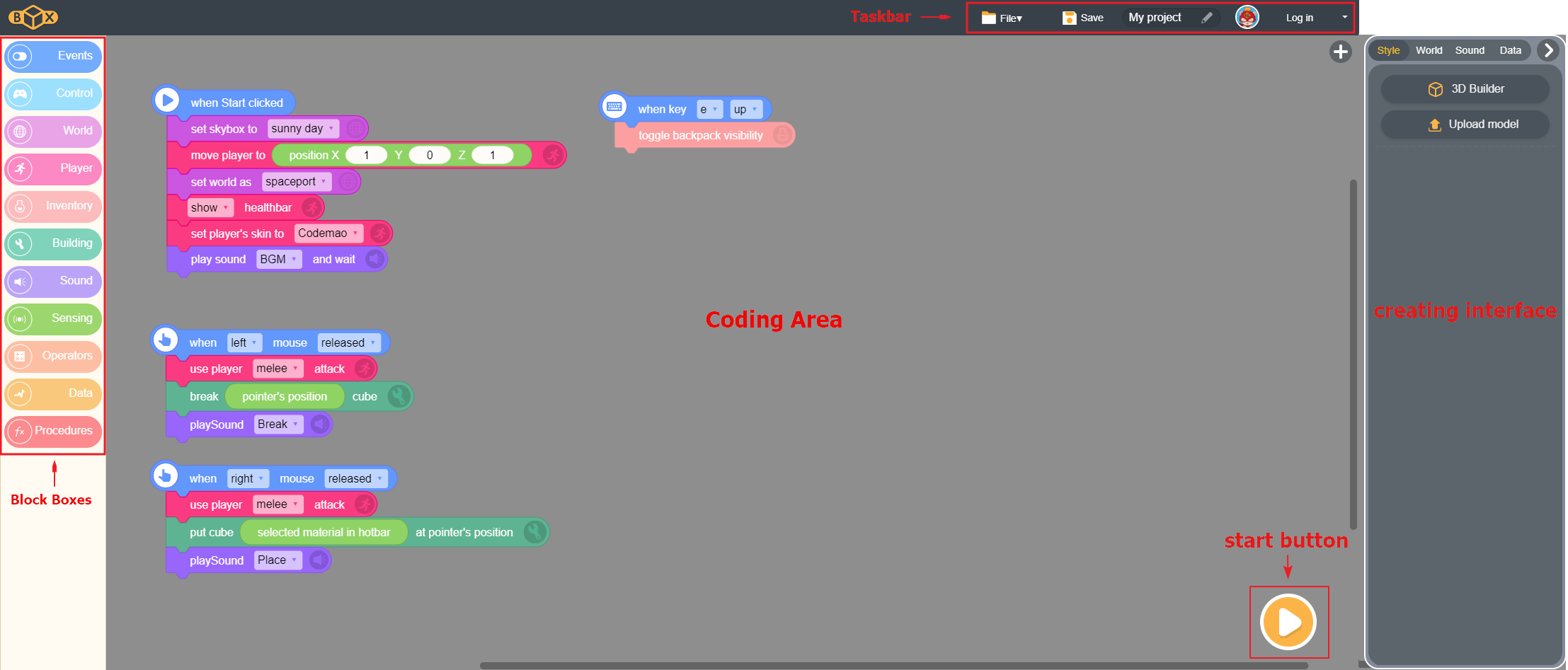
When you enter BOX.GAME, you can see several areas: block boxes, coding area, start button, taskbar and creating interface.
Block Boxes
Block boxes contains blocks in 11 types and colors. Each box refers to a certain type of instruction in BOX.GAME.
Coding Area
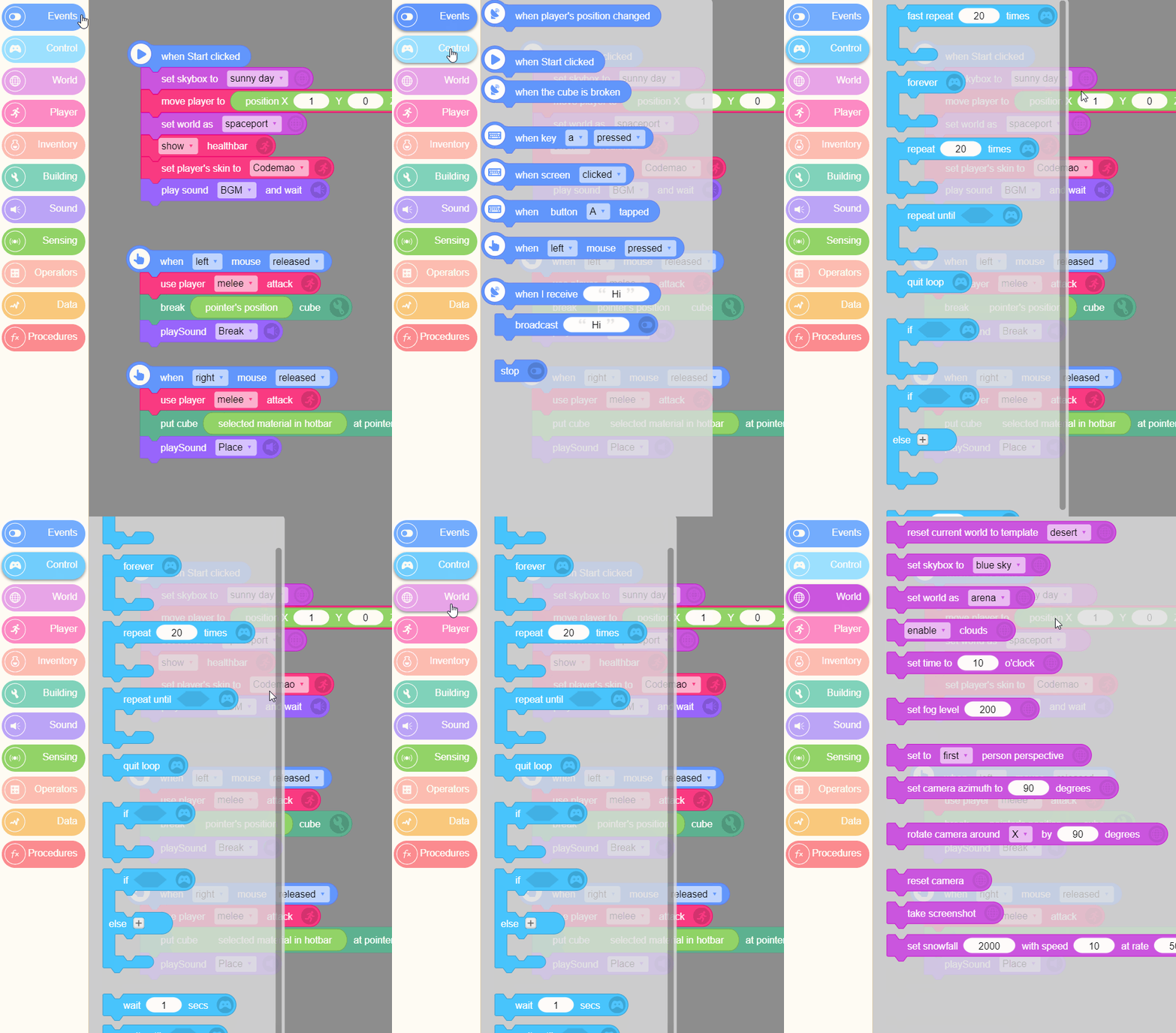
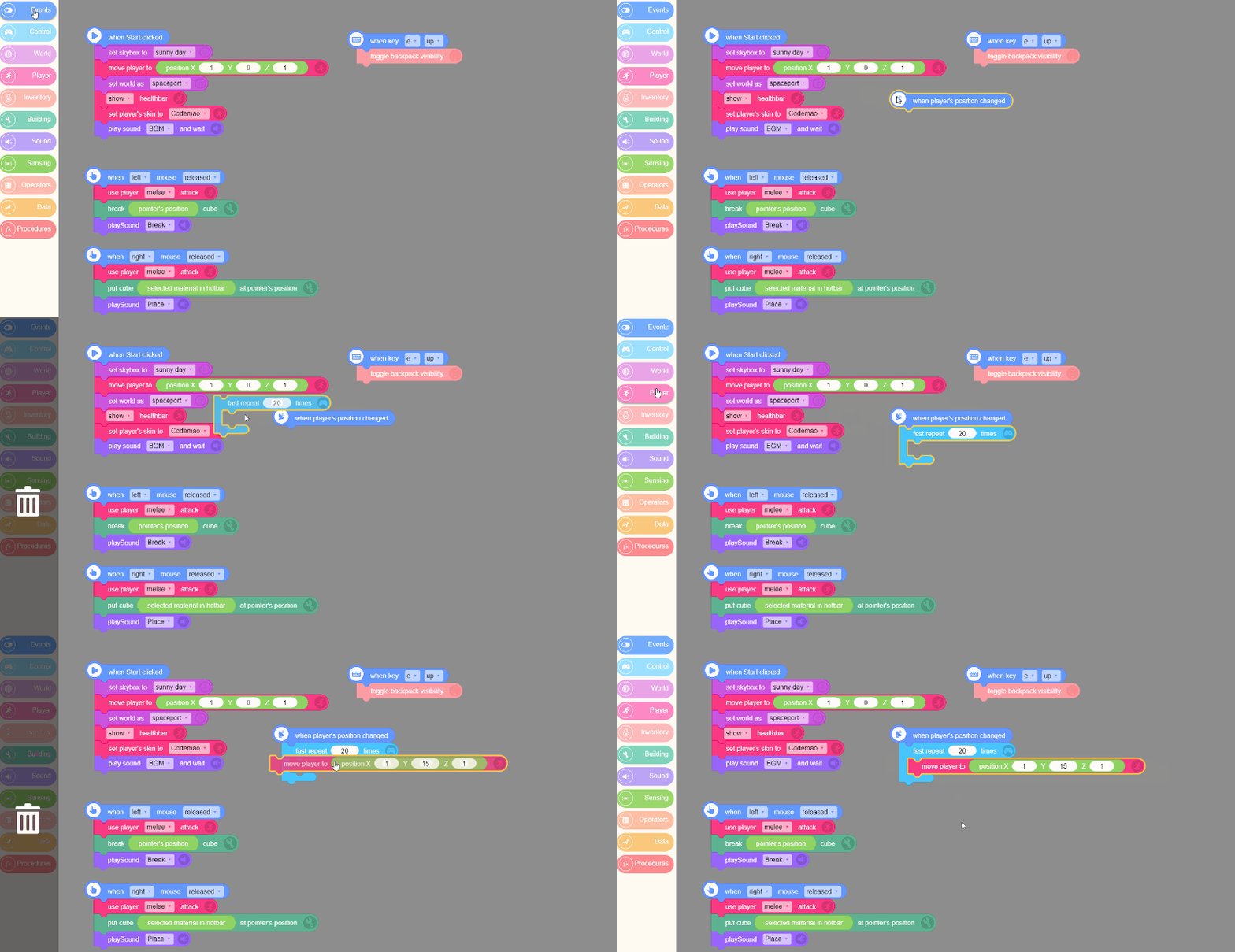
Coding area is the core area of BOX.GAME. It contains all the coding blocks in BOX.GAME. Trainee can drag blocks from block boxes to this area to do the coding.
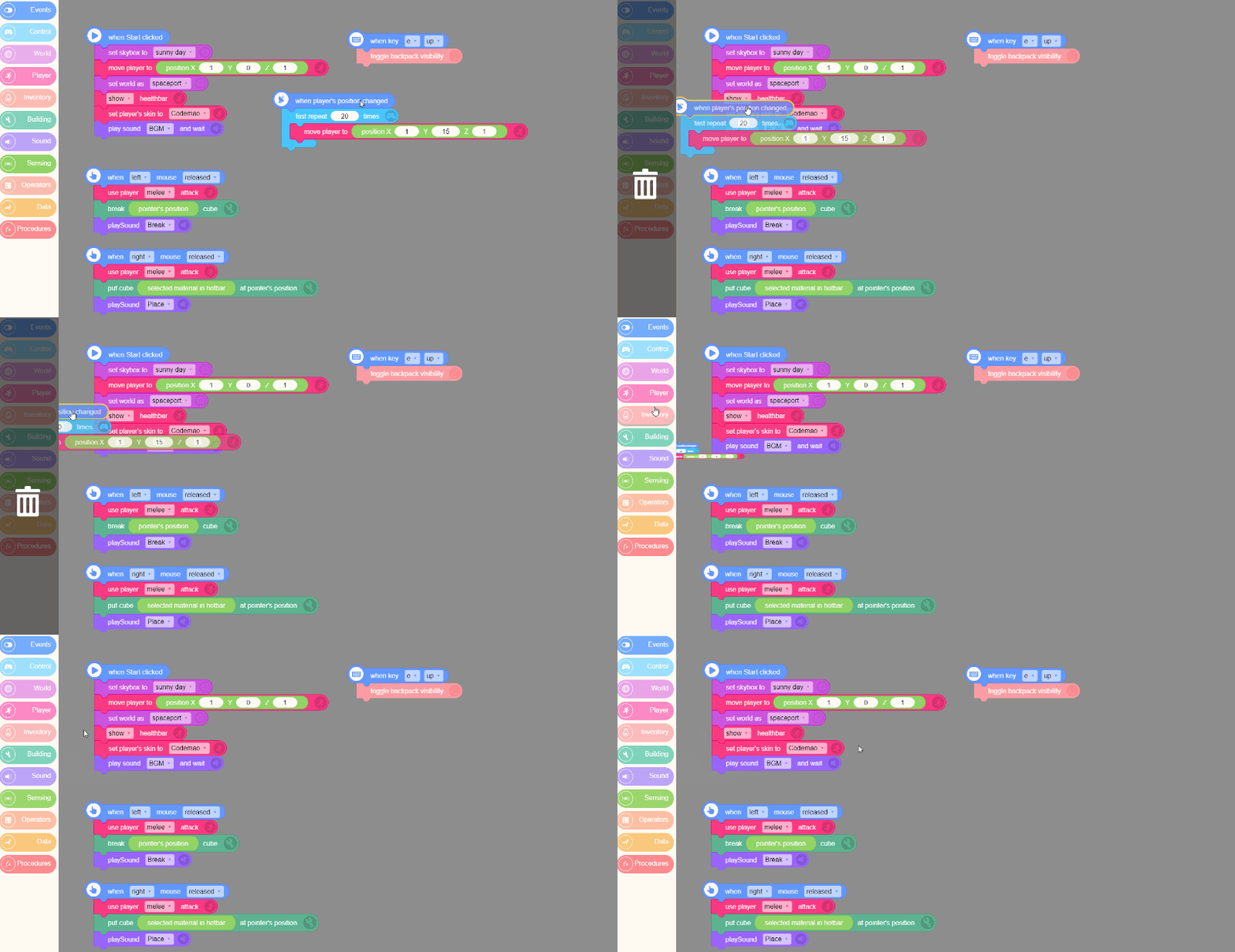
You can delete redundant blocks by dragging them to block boxes area (or pressing Backpace key, or right-click redundant blocks and choose delete).
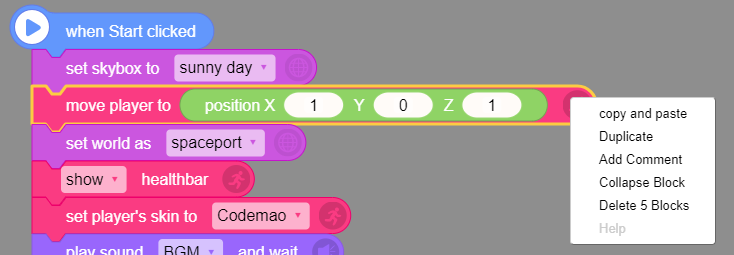
Right-click block to copy and paste blocks, add comment on block, collapse blocks and delete blocks.
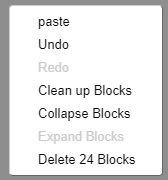
Right-click blank area to paste blocks, undo and redo (if blocks were deleted accidentally, you can click undo to recover these blocks), clean up, collapse, expand and delete blocks.
Taskbar

1. Files
You can upload, create and save your project.
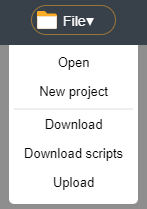
Open: Open your previous projects saved on the Internet.
New project: Create a new project. (Please note: if a project already exists, save it before you create a new project, or it cannot be recovered.)
Download: Save your project to local (including sounds, worlds, codes, 3D models and so on, in .bcm format).
Download script: Only save your code (blocks) and data to local (does not including 3D models, sounds or worlds, in .vers format).
Upload: Open local file in ".bcm" or ".bcmp" format.
2. Save
Save your current project online. (The system will automatically save your work online every 5 minutes.)
3. Change Project Name
Enter a new project name.

Start Button
Click yellow start button on bottom right to enter the game and run the script in coding area. Press Esc key or key Q to return to BOX.GAME Editor.

Creating Interface
Click "+" button on top right, and you can see the creating interface. Here, you can create new model with 3D Builder, upload and create new world, add sound, create new data, etc.