Sensing
1. [player's position] enter space formed by [position X [-3] Y [-24] Z [-8]] and [position X [0] Y [-22] Z [-5]]

Detect if [player's position/pointer's position/drone's position] is in the space formed by two positions. If so, then the condition is true, and the system will run the below script. The size of the space depends on the distance between the values of X, Y, Z of the two positions.
As the figure below shows, the blue area refers to the space formed by position Q (X1, Y1, Z1) and position p(X2, Y2, Z2)
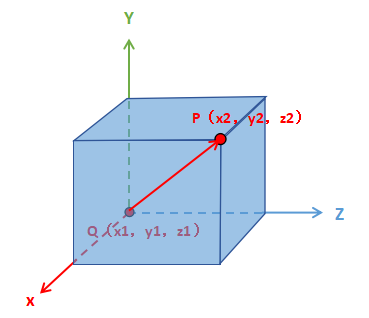
- Please note: in BOX.GAME, there is a bug that when the two positions, position Q (X, Z, Y) and position P (X, Z, Y), are the same, the spaced formed by Q and P does not refer to the cube where P and Q is, but the space formed by position Q/P and position B (X+2, Z+2, Y+1). So, do not enter two same positions.
2. [pointer's position]'s [X-axis] value

- Get and return the value of [X-axis/Y-axis/Z-axis]
3. [left] mouse [pressed]

Detect if [left/right] mouse is [pressed/released] or not.
Please note: the "[ ] [pressed/released]" block in Sensing and the "when [ ] [pressed/released]" block in Events, though of different types, have the same function, i.e., when a specified key is pressed, a certain condition will be triggered. If the player keeps pressing the specified key, then the condition will not be triggered.
4. screen [clicked]

- Used on the phone to detect if the screen is [tapped/long pressed]. If the screen is [tapped/long pressed] during the game, then the condition is true and the system will run the below script.
5. [pressed] key [a]

- Detect if a specified key is [pressed/released] during the game. When the key is pressed/released, the condition is true, and the system will run the script below.
| Status | pressed or released |
|---|---|
| key | 26 English letters, number 0-9, up arrow, down arrow, left arrow, right arrow, Enter, Space, any key |
6. cube [ ]

- Contain all the cubes in BOX.GAME. This block is usually used with blocks in Events, Building, and Sensing to build cubes or detect the cube material in certain position.
7. pointer's position

Pointer's position refers to the mouse pointer's position. This block will return the coordinates of the pointer's position. If it returns [999, 999, 999], then it means that there is no pointer's position or the pointer's position is at an infinite place.
As the figure shows, the white-framed area with the crosshair is the pointer's position.
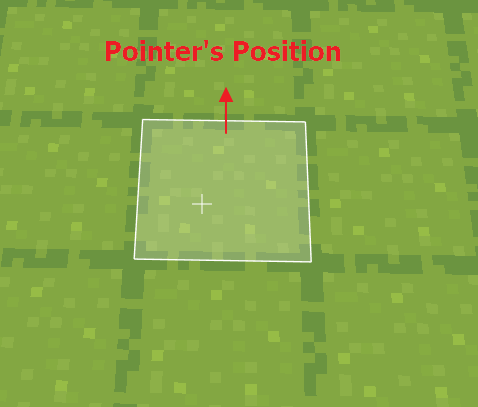
- Please note: the pointer's position does not refer to a surface, but the central point of the pointed cube.
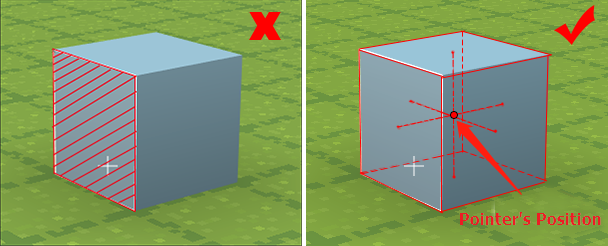
- You can press Ctrl+F3 to check the coordinates of pointer's position.

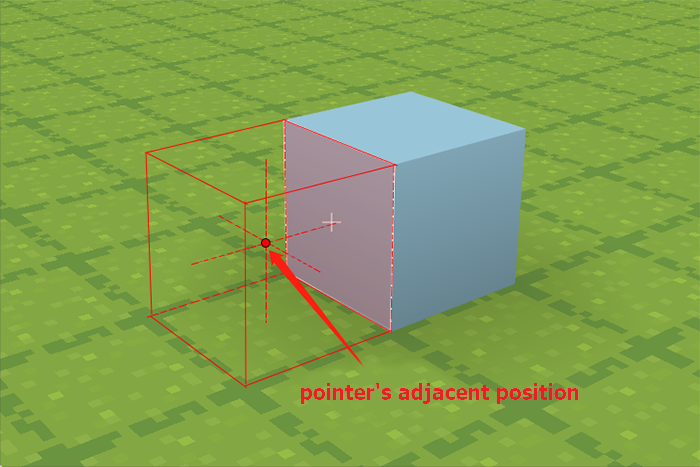
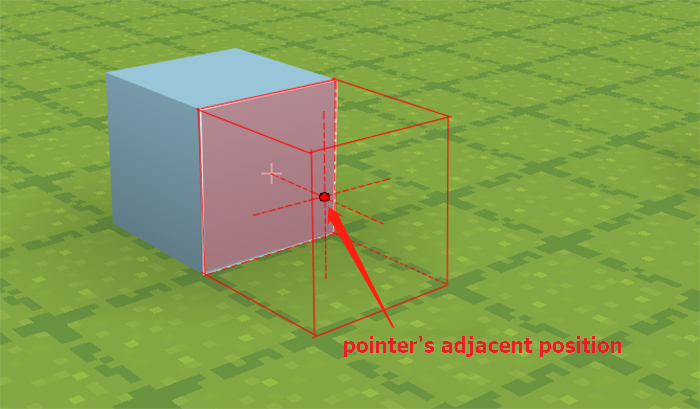
8. pointer's adjacent position

Coordinates of the pointer's adjacent position. Here the adjacent refers to the cube near the selected surface. For example: if the selected surface is the one at the positive direction of Y-axis of the cube, then the pointer's adjacent position refers to the pointer's position with Y+1. If the surface is the one at the negative direction of Y-axis, then the pointer's adjacent position refers to the pointer's position with Y-1.
For example:
9. selected material in hotbar

Get the selected cube and item in the hotbar.
The position with the white frame indicates the selected cube ("dark green grass cube") or item in the hotbar. You can press 1, 2, 3, 4, 5, 6, 7, 8 to switch the selected cube or item.


- Combination: this block is usually used with "put cube [ ] at pointer's position" block.

10. position X[1] Y [15] Z [1]

The BOX.GAME is a 3D world where each cube has an unique position indicated by X, Y, Z. (Each cube has a central point; the position of the cube refers to the position of the central point.)
The values of the coordinates can be decimals, but the cube's coordinates must be integers. So if you have entered decimals as the cube's position, the system will only take the integer parts.
11. cube material of [pointer's position]

- This block is used to get the cube material of a certain position. Cubes in BOX.GAME are different in materials.
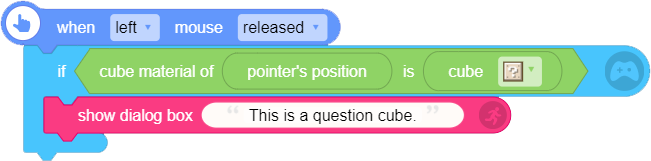
12. cube material of [pointer's position] is [cube [ ]]

Detect if the cube material of a certain position is cube [ ]. If so, then the condition is true, and continue to run the script.
For example:
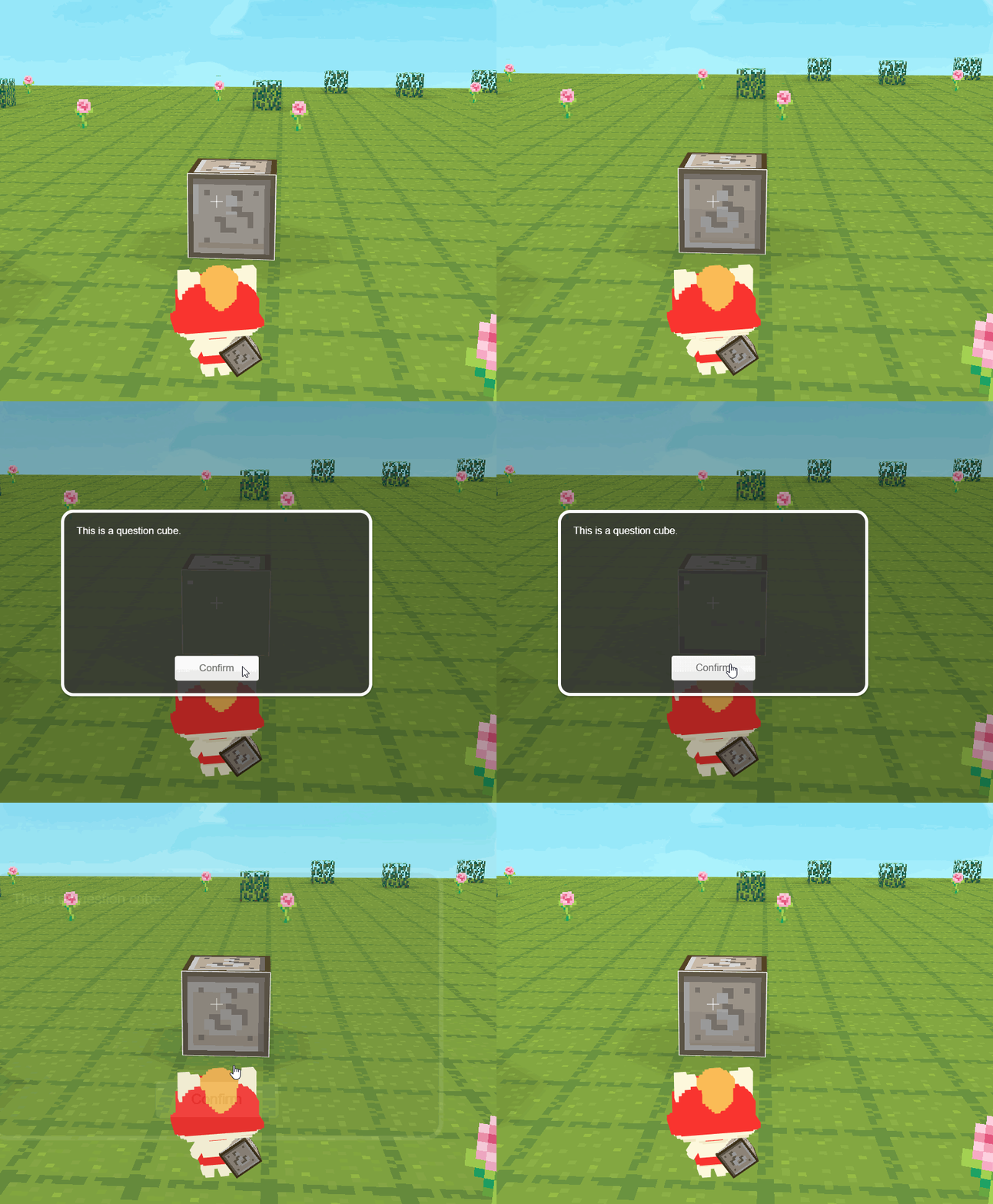
If you want to set left-click on a certain cube at a certain position as a trigger, you can use this block. Run the script below. When you left-click the question cube, the condition "cube material of [pointer's position] is cube [question]" is true, and the dialog "This is a question cube" will show.
13. drone

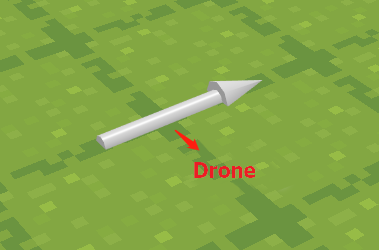
The drone contains both the position (X, Y, Z) and the direction (the facing direction). The drone's default position is infinite (X:999, Y:999, Z:999).
You can press Ctrl+F3 to check the drone's position on the top right.

14. drone's rotation at [X-axis]

- Get drone's rotation degrees around [X-axis/Y-axis/Z-axis]
15. player's HP

- Get player's current HP. Player's default HP is 100.
16. position of broken cube

Locate the position of the broken cube and get it's position values.
The broken cube here refers to the broken cube in "break [position] cube".
17. material of broken cube

- Get the material type of the broken cube.
18. [player] 's [X]

- Get and return the value of [X/Y/Z] of [player/broken cube/drone].
19. entity [?] 's [X]

- Get and return the value of [X/Y/Z] of the specified entity's position.
20. distance between [pointer's position] and [player's position]

Measure the straight-line distance between two specified positions and return a value.
Please note : the values of player's position are floating point numbers, i.e, decimals. So the distance between two specified positions can be floating point numbers.
21. position of entity [?]

- Get the position values of the specified entity. The values may be decimals.
22. when pointer's position on entity [?]

Detect if the pointer's position is on the specified entity. If the condition is true, run the following script.
For example:
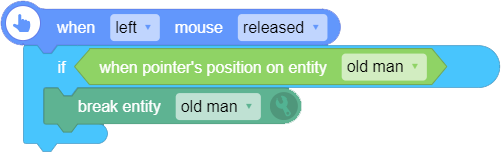
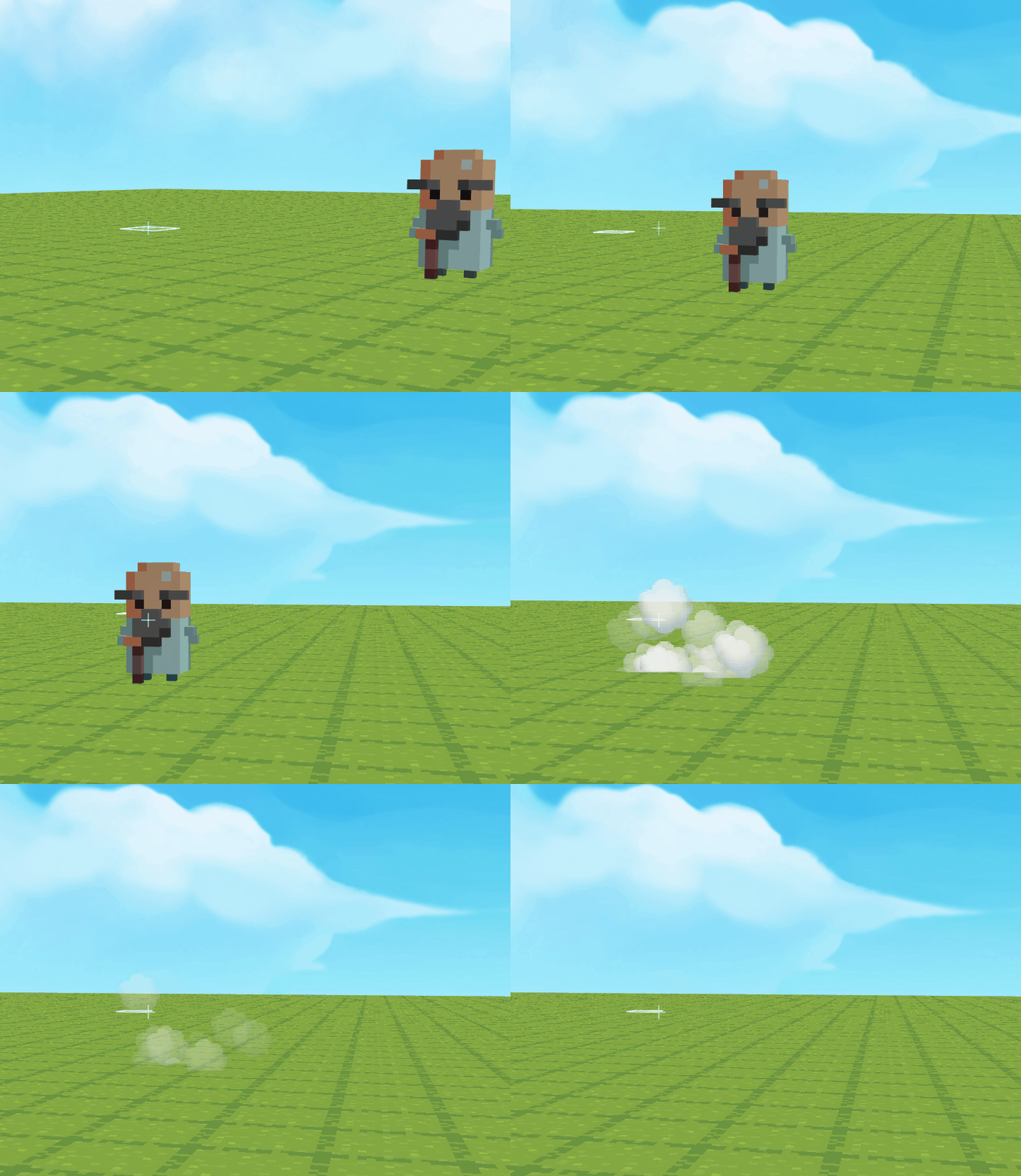
Run the script below. When left mouse is released, if the pointer's position is on entity [old man], then the condition is true, and the entity [old man] will be broken.
23.camera azimuth

Detect the camera's azimuth, which means the facing direction of the player towards XOZ.
Please note the difference between camera azimuth and elevation angle. Looking up or down refers to the elevation angle (not camera azimuth), while looking left or right refers to the camera azimuth. On XOZ, the camera azimuth is 0 along the positive direction of Z-axis, 90 along the positive direction of X-axis, and 180 along the negative direction of Z-axis, 270 along the negative direction of X-axis.
You can set the facing direction of the player by setthing camera's azimuth.
24. current [year]

- Get the current [year/month/date/week/hour/minute/second] from the computer immediately. This block can be used to create a clock.
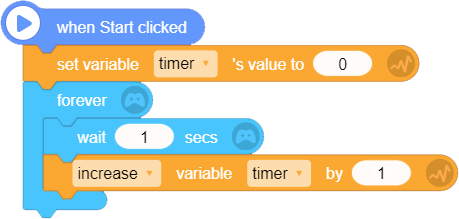
25. timer

- Get values from the timer immediately.
26. timerreset timer

Reset the timer to zero.
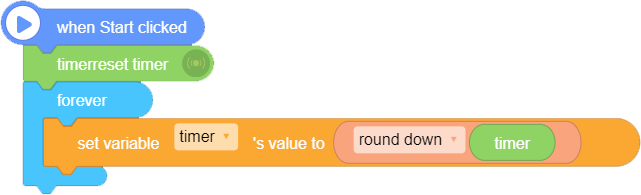
Frequent usage of the timer:
Usage 1:
Usage 2: