Player
1. set player's skin to [Codemao]

- Set player's appearance as Codemao or Dan.
2. set player's name as [ ]

Name the player by entering string or connecting variable.
For example:
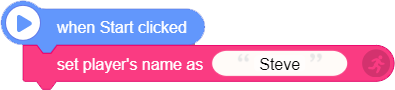
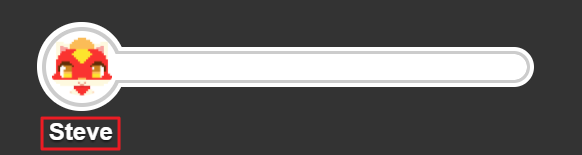
Connect it to "when Start clicked" block, and name the player "Gram". When you enter the game, you can see the player name has changed to "Gram".
3. player's position

It is where the player is in coordinates. The player's position can be expressed by a set of unique X, Y, Z values.
Please note: the value of the player's position on each axis is floating point, which means that decimal is allowed. But the value of cube's position must be integer.
Press F3 key (or Ctrl+F3) to check the current player's position on top right.

4. move player to [position X[1] Y[15] Z[1]]

Move player to a specified position.
Please note: the action here is to move in an instant, not to move slowly. It is often used to teleport player.
5. [allow] flying

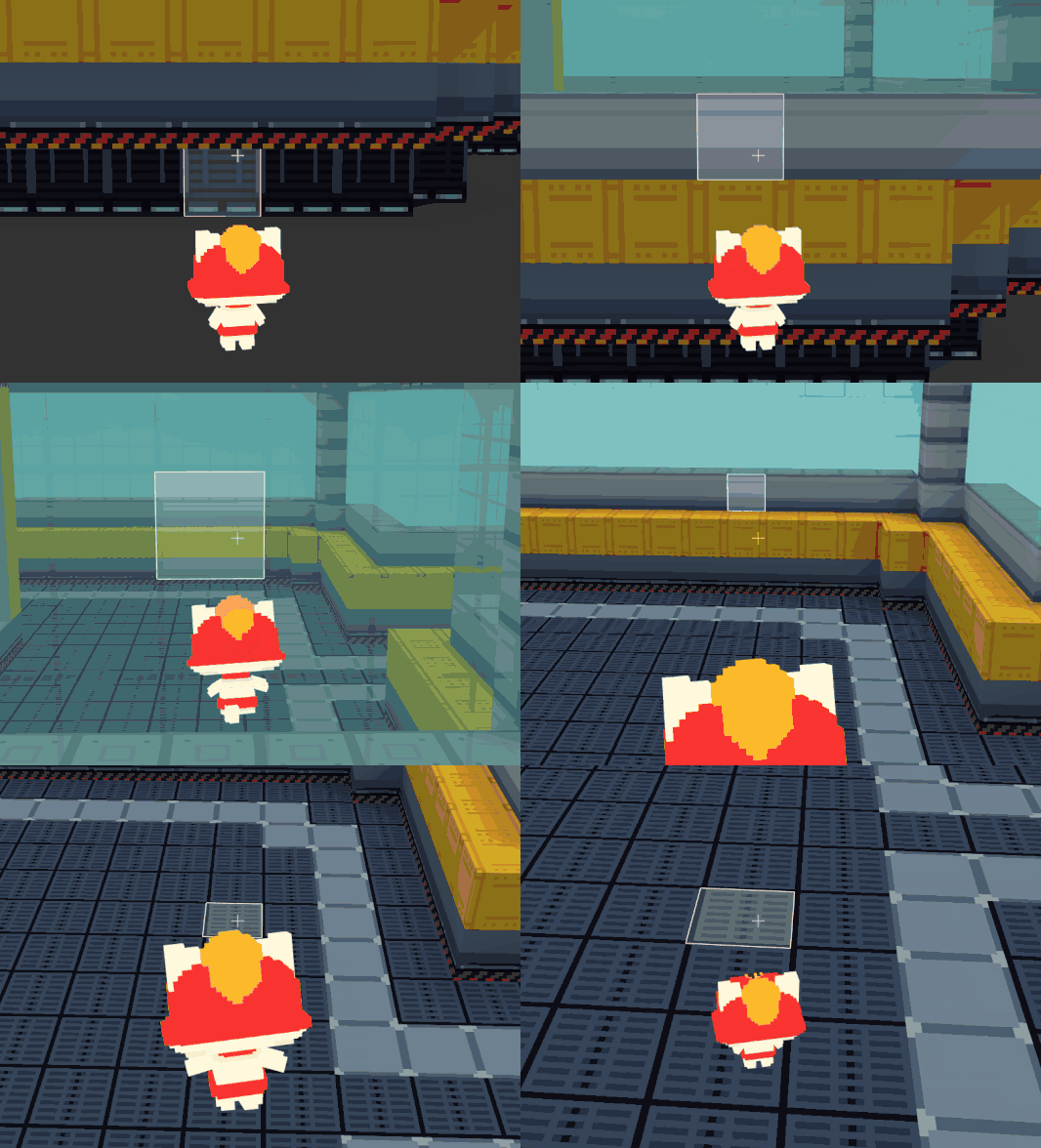
This block can [allow/forbid] player to fly in game. If it is "[allow] flying", you can double-press space bar to start or stop flying. Single-press space bar to make the sprite ascend and single-press Shift key to make it descend.
Please note: When the sprite is allowed to fly, it can stay suspended in the air instead of falling down because of the gravity, and can move across walls and cubes.
6. [allow] out of edge

- Set whether the player is allowed to be out of edge. If the player is allowed to be out of edge, player would not be teleported back to the world when it is out of edge; if not, player would not be teleported back to the world once it is out of edge. The default mode is "[forbid] out of world".
7. use player [melee] attack

- This block can set the attack action of the sprite (Codemao or Dan). There are two attacks available now: melee attack and long-range attack.
8. player sits down

- Make the sprite to do the act of sitting down.
9. player eats

- Make the sprite to do the act of eating.
10. show dialog box ["Hello, Codemao!"]

Show a popup window in game, and you can input the content that would be shown.
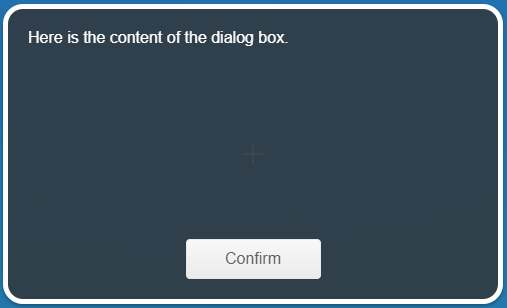
Please note: when this block is run, a popup window will be shown. You can only click "Confirm" to close it.
For example:
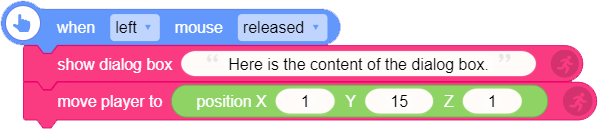
Run the script below. When key I is released, a dialog box will be shown. Only when you click "Confirm" will the player be moved to position [X:1, Y:15, Z:1].
11. player [Codemao] said ["Welcome to Box Island!"]

When it goes to this block, a popup window will be shown. But compared with "show dialog box [ ]" block, this block is on the bottom and you can input the sprite name.
Please note: only when you click "Close" on bottom right to close the popup window will script below be run.
For example:
Run the script below. When left mouse is clicked, a dialog box will be shown. Only when you click "Close" on bottom right will the "[melee] attack" block be run.


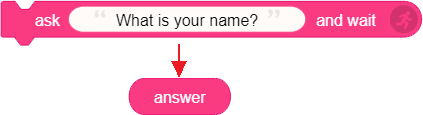
12. ask ["What is your name?"] and wait

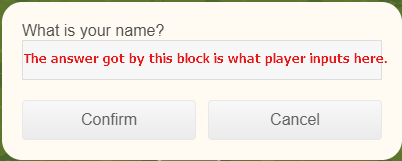
When this block is run, a popup window will be shown to ask specified question. Player can enter his/her answer in input box.
Please note: only when you close the popup window will the following script be run.
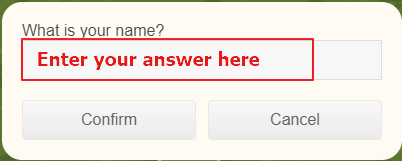
13. answer

- This block has to be used with "ask [ ] and wait" block to get player's answer.
14. [Codemao] asks [1+1=?] and choose [1] [2]

When this block is run, a popup window will be shown to ask player a specified question. Player can choose from options provided. Click "-" or "+" to delete or add one option.
Please note: Only when player makes his/her choice will the following script be run.
For example:
Run below script. When key I is released, a popup window will be shown: [Fairy] asks [Am I pretty?], and player can choose [Sure], [So-so], or [Ugly]. Run the script below after a choice is made.

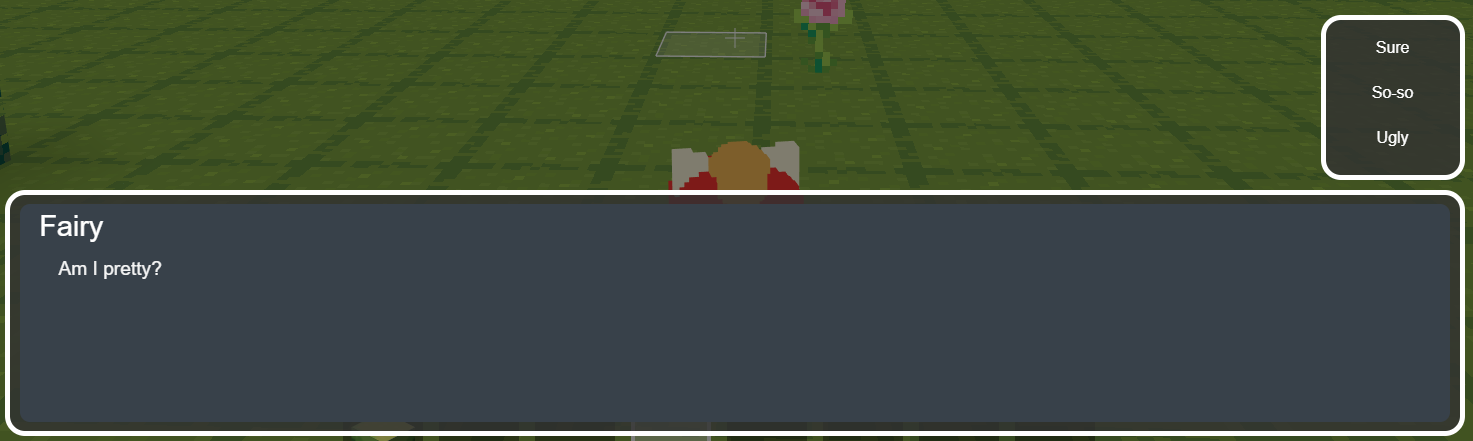
15. choice

This block has to be used with "[ ] asks [ ] and choose [ ] [ ]" block to get the contents of player's choice.
For example:
If player choose "Sure", "Fairy" will say "Thank you!". If player makes the other two choices ([choice] is not "Sure"), this dialog will not be triggered.

16. choice index

This block is similar to "choice" block. It also has to be used with "[ ] asks [ ] and choose [ ] [ ]" block, but what it gets is the index of choice instead of content.
For example:
In the script below, index 1 corresponds to choice "Sure".


17. show scrolling [?] font size [20]

When this block is run, show the scrolling from the bottom to the top in the middle of the screen. Scrolling's font size can be set in this block.
Please note: only when scrolling finished will the following script be run.
How to create scrolling?
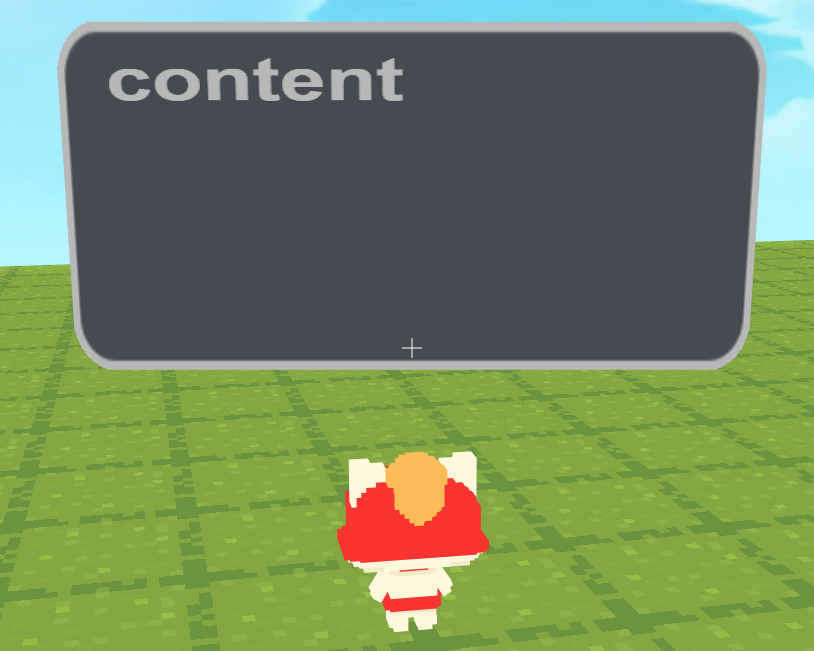
18. No.[100] message box at position X[1] Y[2] Z[1] [hide] [Hi there!]

[show/hide] a message box at certain position. The contents can be set in this block.
Please note:
(1) This block is different from other dialog box blocks. It will not cause a "pause" in running the script, which means that you do not need to click any button like "Comfirm" or "Close" to end the popup window and continue to run the following script. The following script will be run once this block is finished.
(2) Only one message box of the same number can be shown at the same time. For example:
Run the script below. When key E is released, message box will appear at position [X:1, Y:1, Z:1], showing [message 1]. Wait 1 second, and then this message box will appear at position [X:2, Y:2, Z:2], showing [message 2]. However, the previous message box at [X:1, Y:1, Z:1] will disappear because they are both No.1 message box and only one can be shown at the same time.

If you want to show several message boxes at the same time,change the second message box to No.[2] message box. See pictures below:

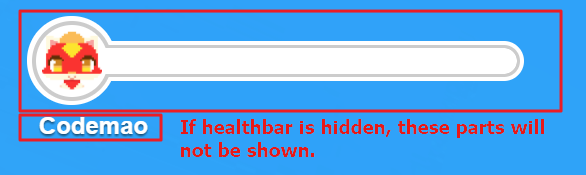
19. [hide] healthbar

- [show/hide] player's healthbar in game. If player's healthbar is hidden, player's name, avatar or healthbar would not be shown on top left in game.
20. set player's HP to [10]

- Set player's HP to input value. If not, the player's default HP is 100.
21. set player's maximum HP to [10] and [refresh] HP

- Set player's maximum HP to input value, and choose whether to refresh current HP. This block is often used to recover player's HP to maximum value.
22. deal [10] damage to player

- Make player's HP to decrease by input value.
23. restore [10] HP to player

- Make player's HP to recover by input value.