3D Builder Guides
3D Builder is a tool for users to create 3D models with cubes. Models created by 3D Builder can be uploaded to BOX.GAME directly. If you want to know how to use 3D Builder, you can watch the open course of the introduction to 3D Builder or read the guide below.
Enter 3D Builder
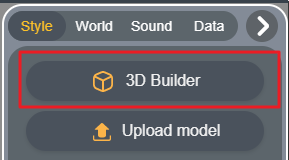
Click the "+" button on the top right of BOX.GAME Editor, then click "Style" and "3D Builder" to enter the 3D Builder Editor.
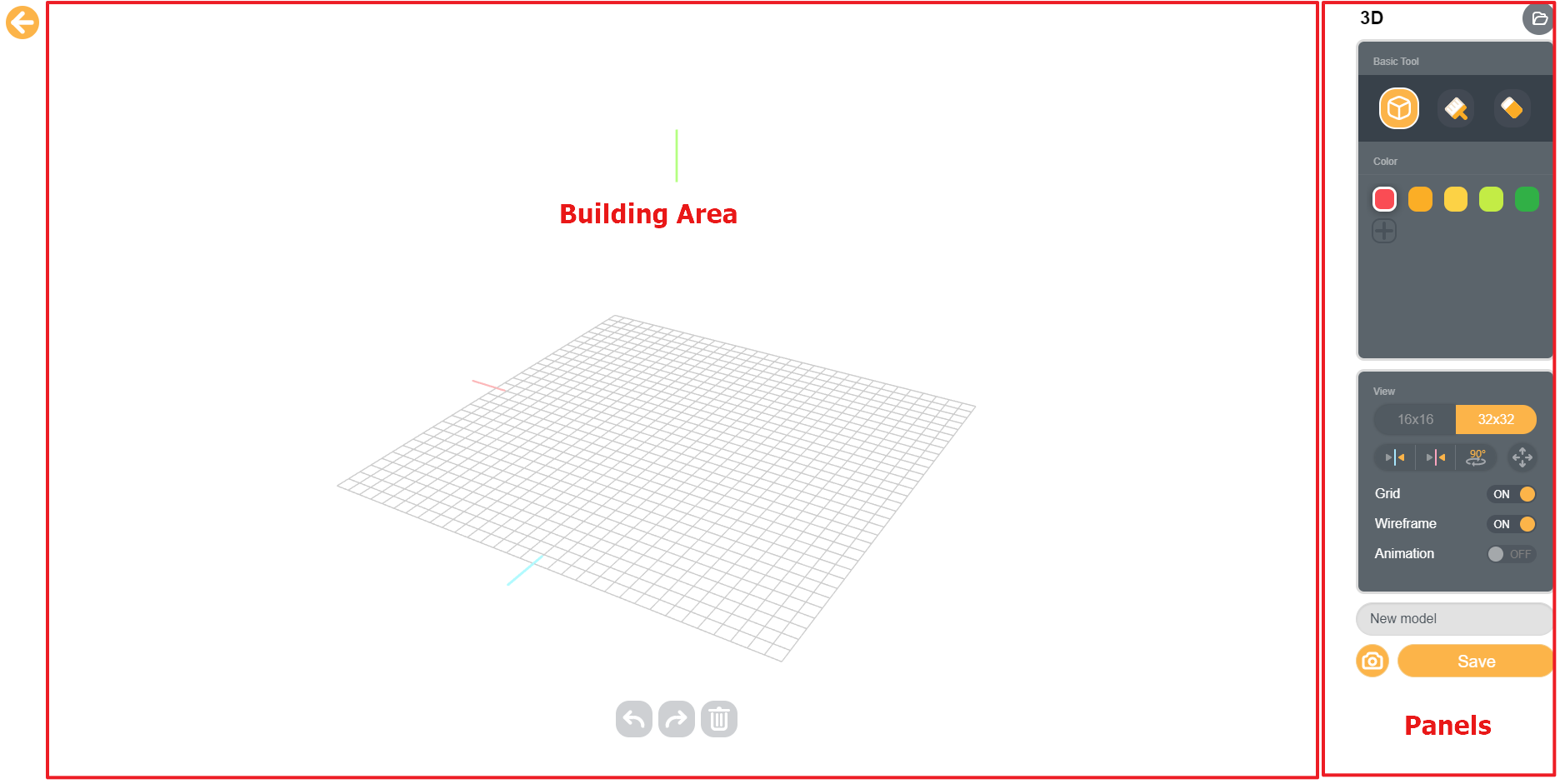
Building area
You can build any model you want with cubes in the building area.
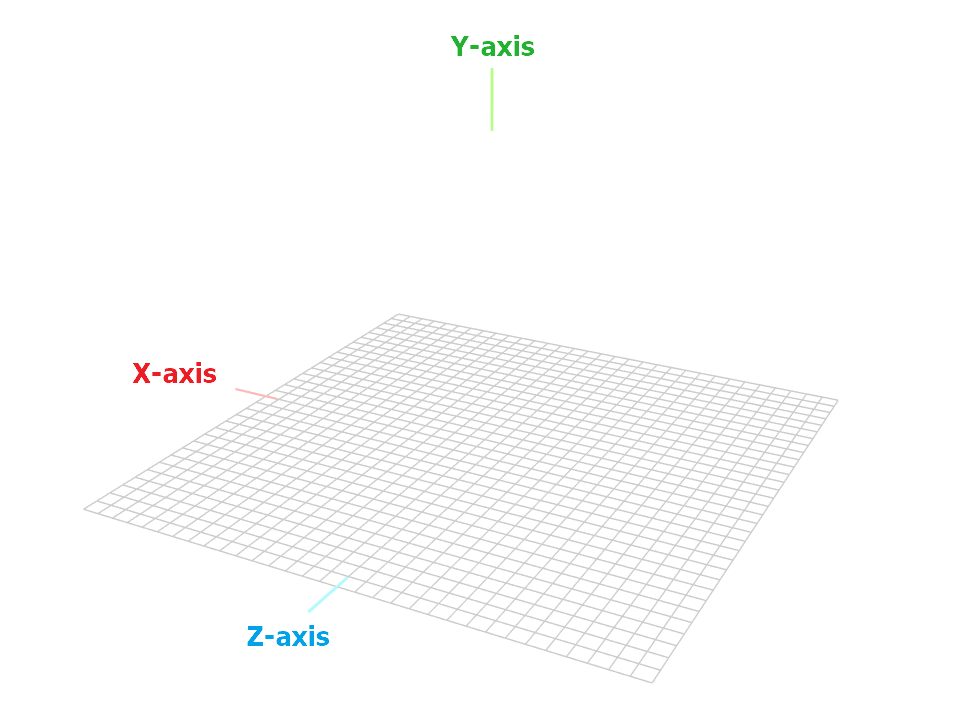
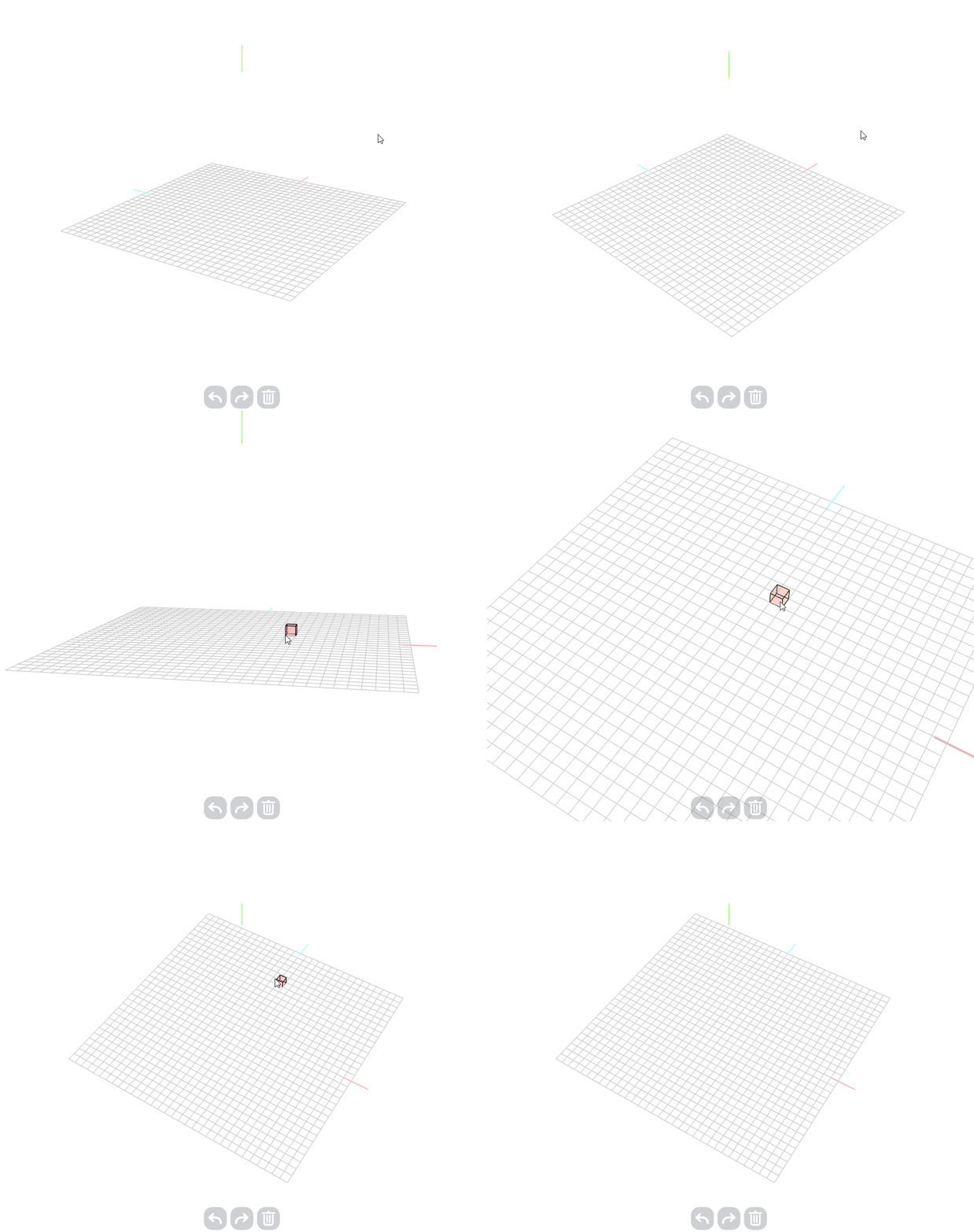
Right-click or left-click and move the mouse at the white space to adjust the perspective; scroll to zoom in and zoom out;
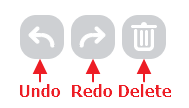
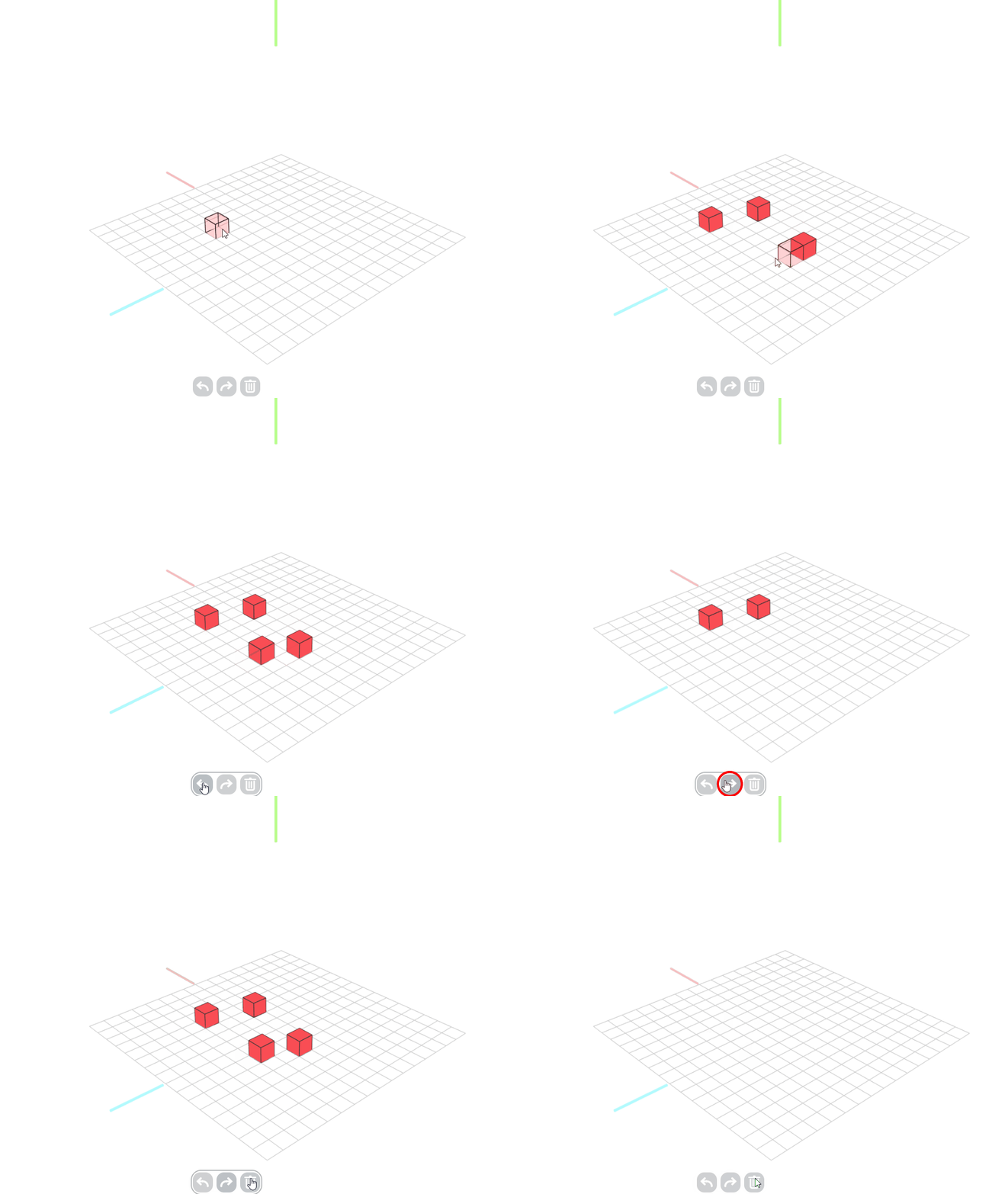
Undo: to erase the last operation. You can return to the previous step.
Redo: to redo the operation you have commanded.
Delete: to delete all the cubes in the building area (you cannot negate this "delete" command by "redo", so use it carefully).
Panels
1. Basic Tools
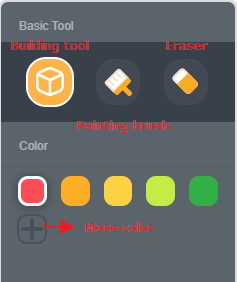
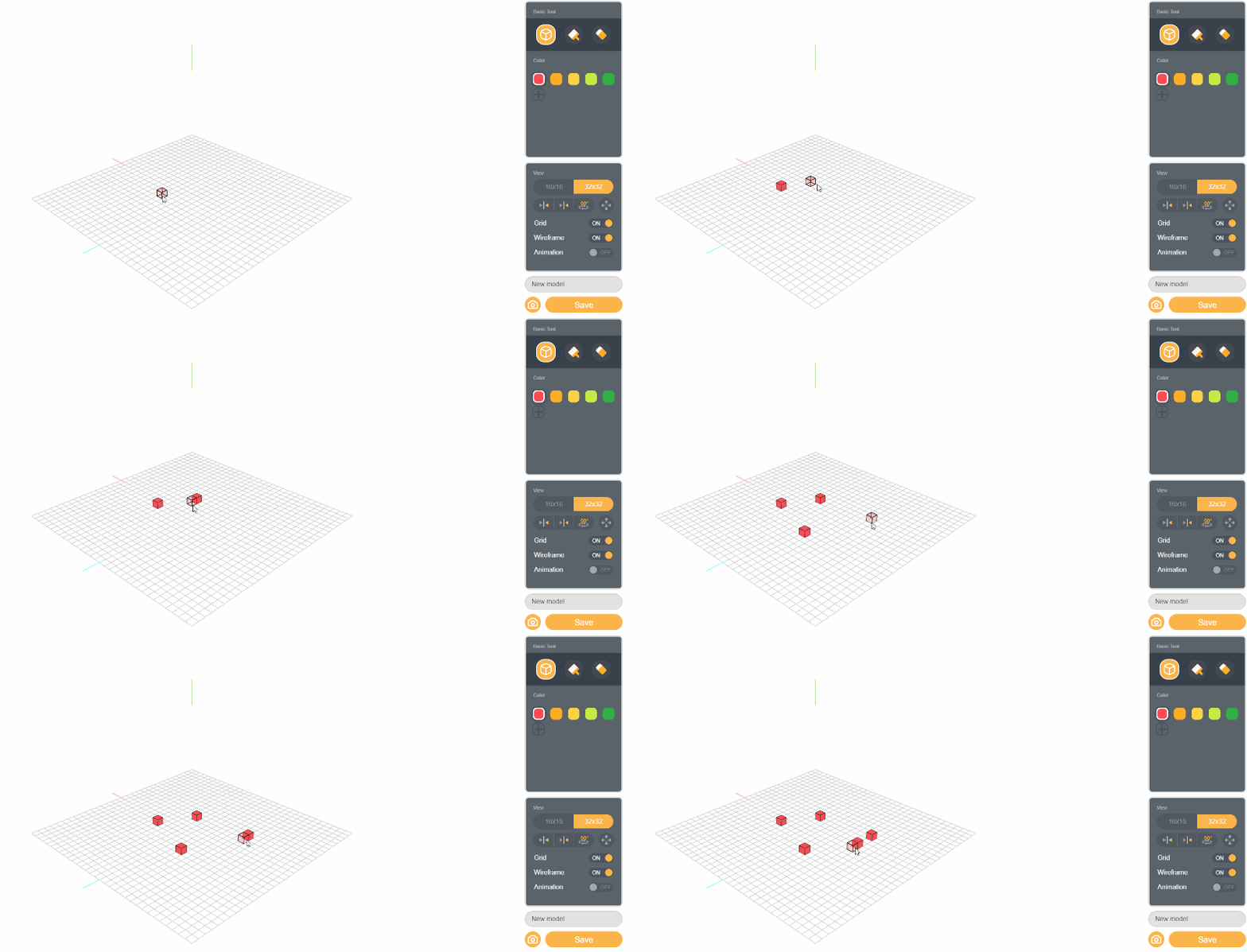
Building tool: click building tool and choose the color you like, then you can left-click to add cubes in the building area.
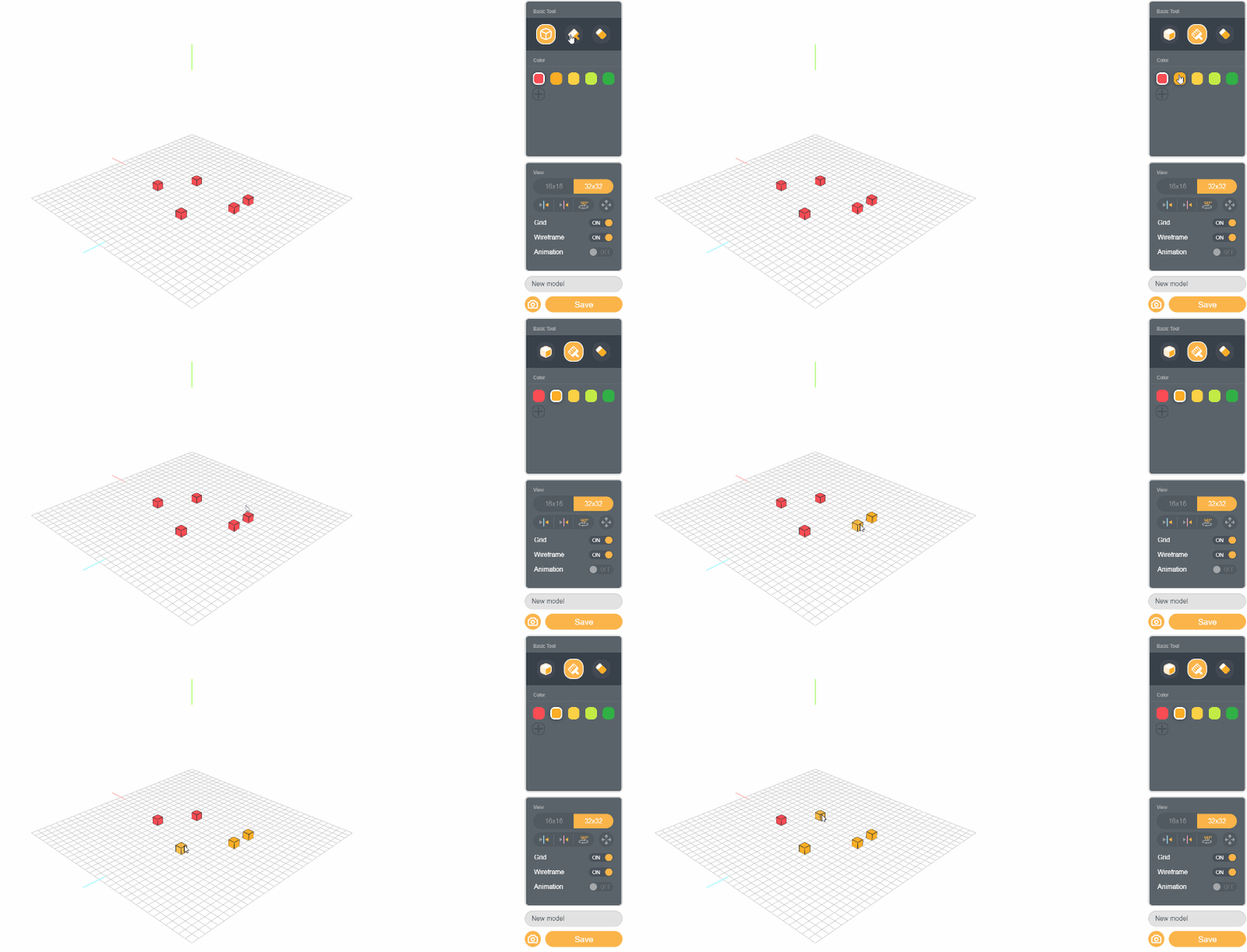
Painting brush: click painting brush and choose the color you like, then you can left-click the existing cube to color it.
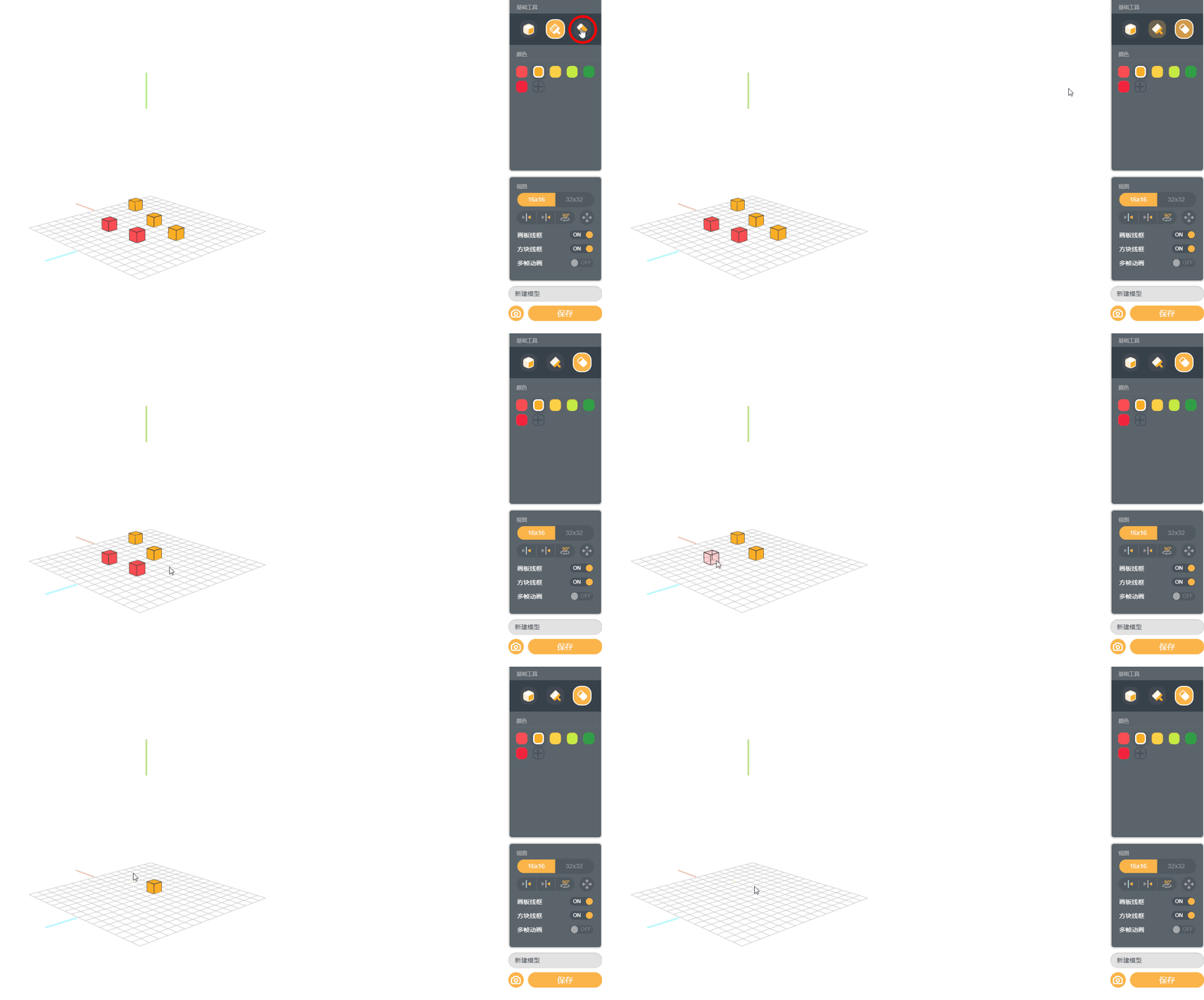
Eraser: click eraser, then the exsiting cube to remove it.
2. View
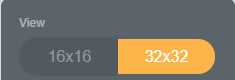
Size of building area: you can set the size of building area as 16 x 16 or 32 x 32. Please note that you will only change the covering area of the building area, not the size of cube.
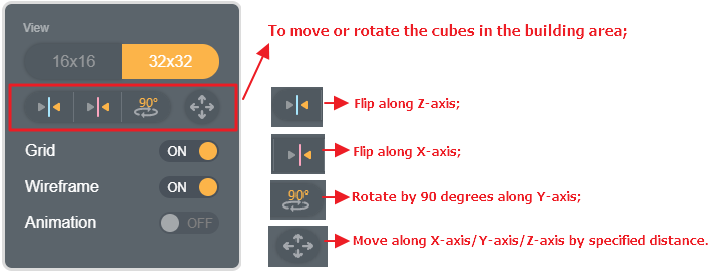
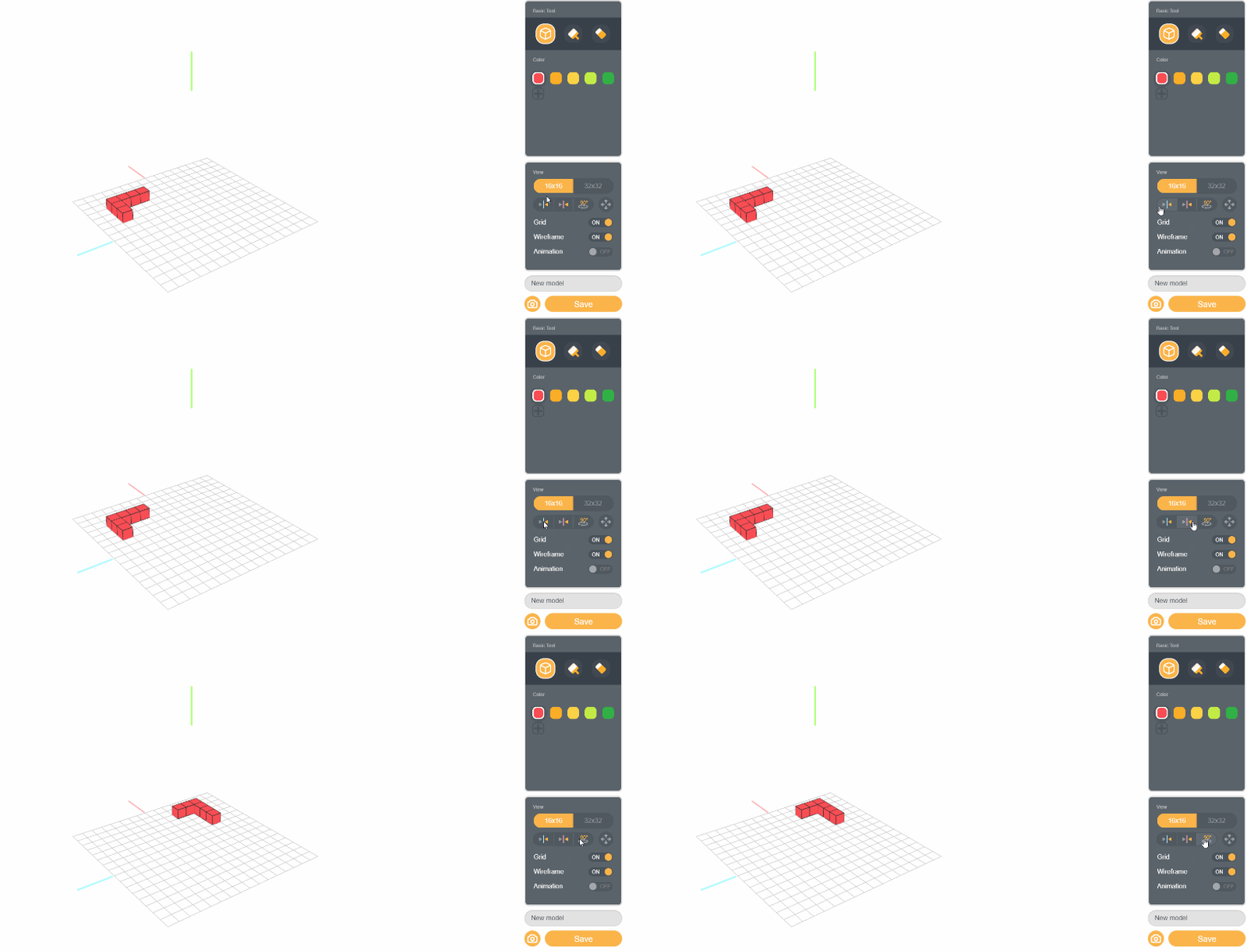
Rotate/move model:
Grid: hide/show the grid;
Wireframe: hide/show the wireframe;
3. Animation:
(1) Step 1: turn on animation;

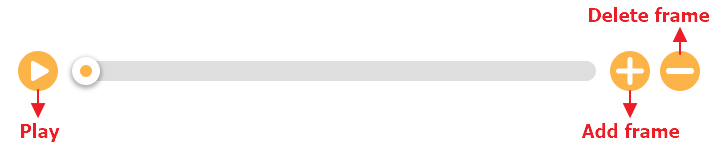
(2) Step 2: when you turn on animation, a time bar will appear below the building area. Click "+" to add a frame, "-" to delete a frame, and the play button to preview the animation.
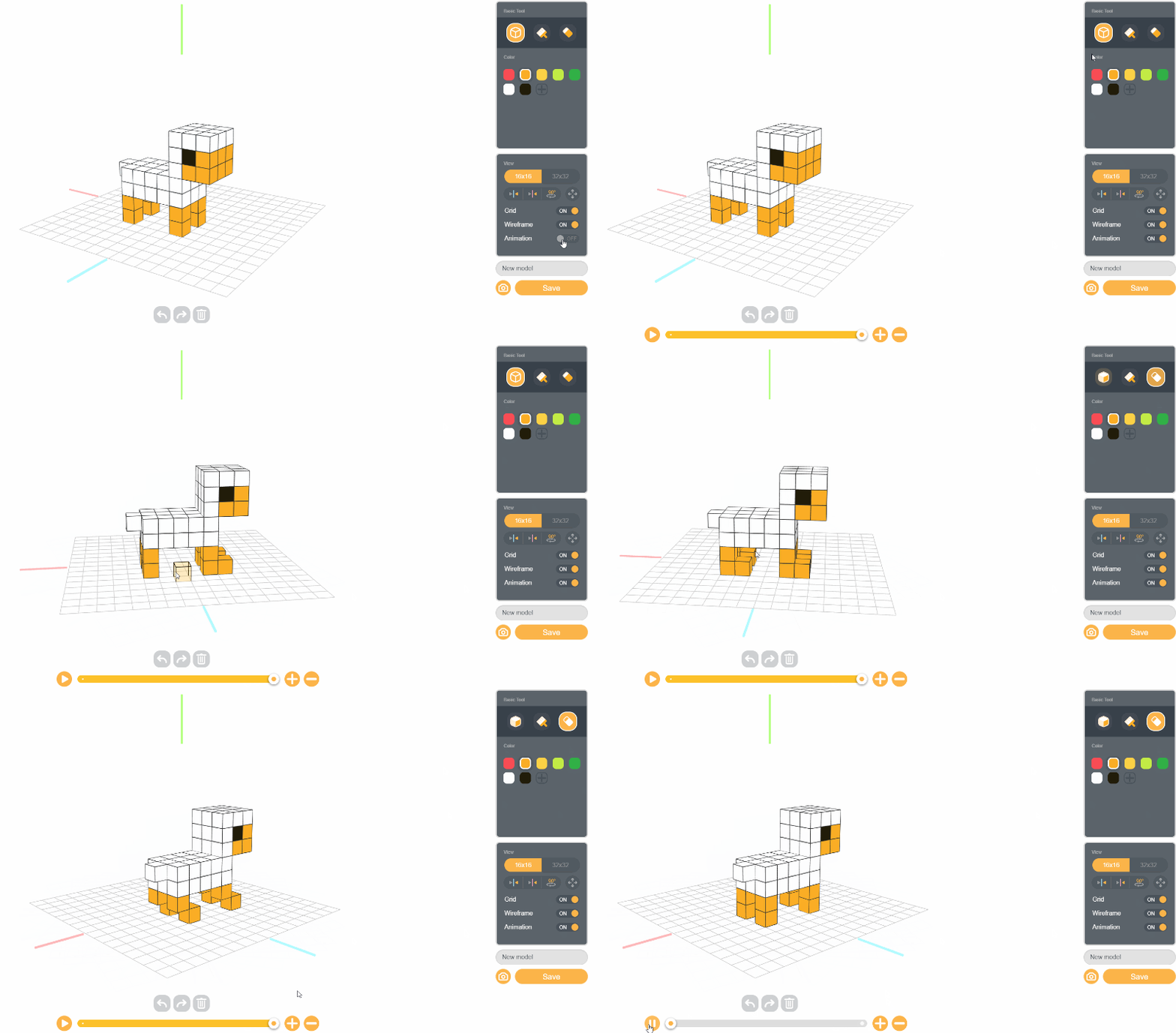
(3) Step 3: after you add a frame, you can change the model at the new frame. Then, you can click the play button to preview the animation.
Save and Use
After you create a model, you can name it and click "Save" to save it. Then, you can find the model in "Style" of the BOX.GAME Editor.
Use the block "place model [ ] at [ ], scale [ ] [with/without] collisions [with/without] animation [ ] sec(s) per frame" to place the model in the world.
For example:

Download and Upload
Click this camera-like button to download the model to local as ".png" file.
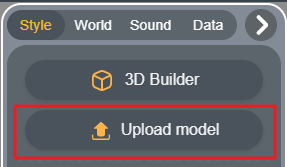
Click "Upload" in "Style" to upload the downloaded ".png" model.
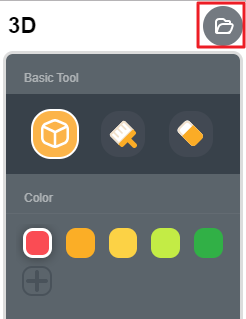
Click the folder-like button on the top right of 3D Builder to upload the ".png" model downloaded from 3D Builder or ".vox" model downloaded from MagicaVoxe.
Edit Model
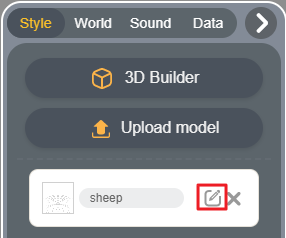
Return to the BOX.GAME Editor, and you can find the model in the "Style" panel.
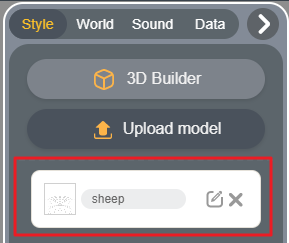
Click the edit button, and you can enter the 3D Builder to edit the model.